Tag Archive | "lenovo"

Lenovo Ideatab Lynx Keyboard Dock First Impressions (Updated)

Tags: , , , , , ,


2013-01-22-1454

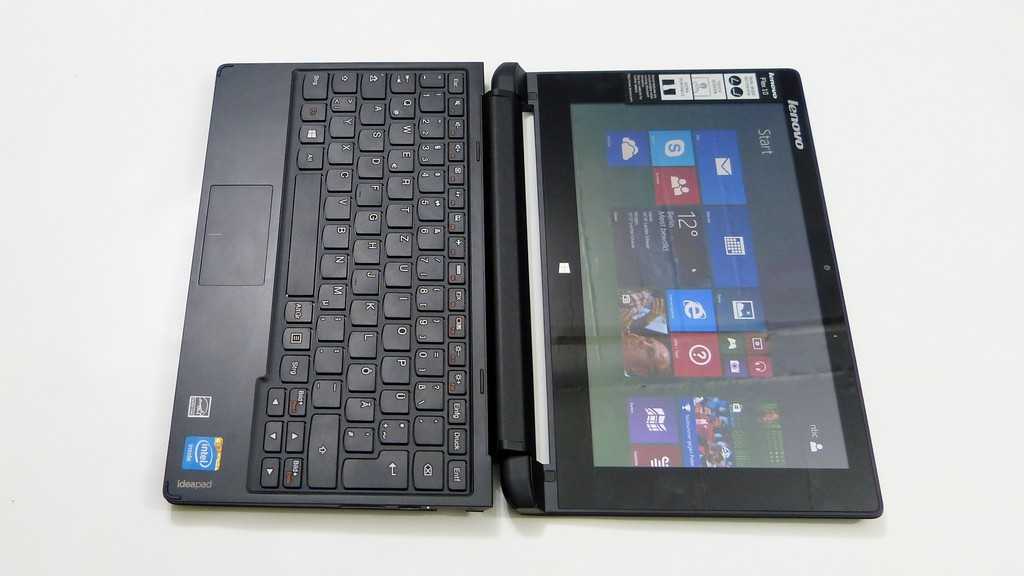
My son would like to introduce you to the Lenovo Ideatab Lynx keyboard Dock which completes the Ideatab Lynx order I placed last week. I’ve already put an early review out for the tablet but the review won’t be complete until I’ve spent some time with the keyboard.

The unit cost 150 Euro and includes keyboard, mouse, 2xUSB 2.0 and a micro-USB charging port.

This article has been updated after an extended testing session. See [update] sections below.

Read the full story

Lenovo Ideatab Lynx Early Review (Tablet Only)

Tags: , , , , , , , , ,


I’ve never been a big fan of tablet PCs. A UMPC with 5-7” screen, yes but the classic tablet pc with digitizer and 11.6 or greater screen size was too awkward for me, Too heavy to hold in one hand, with poor battery life and screen input limited to a pen with a focus on handwriting, was far from my idea of fun or productivity. The Lenovo IdeaTab Lynx, an 11.6” tablet PC is a completely different story however and is easily the best 11.6” tablet PC I’ve used, and that includes the original Samsung XE700, a well-crafted tablet PC with Core CPU and a digitizer. The Lenovo Ideatab runs Windows on an Intel Atom platform.

P1130467_thumb

Now I’m not saying that the Lenovo IdeaTab Lynx is the best 11.6” tablet and I know there’s a huge difference between this and a pro-level Core-based tablet with Digitizer and handwriting input. I must also say that I haven’t fully tested any of the new Core-based Win 8 tablets yet but the Lynx is working well for me and I feel it hits a very nice sweet-spot in the market. Weight, size, price, features, touch, OS. The Lynx is well-balanced and while it’s not going to be a winning consumer tablet, I bet it finds a lot of friends. The Lynx I have here is the 64GB/2GB model which is retailing in my locale for 55o Euro. I only picked it up yesterday but I’ve given it some serious testing over the last 24hrs.

The 11.6” tablet design is very much a productivity-first design, especially when you can add a comfortable keyboard to the mix. At 635gm (1.4 pounds) it’s light enough to serve as a consumption device too though. In portrait mode it really feels like you’ve got the future of the newspaper in your hand. Seriously, if 11.6″ tablets hit 500gm I bet we’ll have another hot segment on our hands. This is the coffee-table tablet!

Is Atom good enough for the job of productivity? It depends on your definition of productivity but it’s fair to say that it’s not going to be good enough for most people as a daily drive for office-type activites. For me, 2013-01-19-1437_q1however, there’s an exciting mix of capability here. As a blogger that writes, and writes, and edits sub-2MB images with the occasional YouTube video edit in 720p, this could really work for me, especially given the battery life and always-on capability. I’d add HSPDA for my ideal mobile blogging setup and a full-size SD card slot would be a dream but this could work out better than a 10” Windows 8 device. I can think of a lot more customers that would get good value out of the Lynx too, not least the long-distance traveler; Having Windows behind the entertaining Metro/Modern/Win 8 Store is perfect for that scenario.

Here’s how I’m using it right now (see image) because I haven’t got the keyboard dock yet. That comes next week.

Here’s a rundown of the device itself.

Screen. Bright, not incredibly punchy in terms of color but is IPS which is a must on a tablet. 1366×768 is OK for me but I know that many would expect more. For reading, there would be an advantage with 1600×900 of course.

Build. Strong. No flex. No creaks. Plastic back feels a bit cheap. One thing I must point out is that the edges are not smoothly chamfered which could have given the use a more comfortable experience. If the Lynx was any heavier it would have been a serious negative point.

Ports/features: No rear cam. Micro ports could be a pain (usb, hdmi, sd on the tablet.) Speakers are loud, not brilliant quality. Dual-array mic. There’s a micro-USB to USB converter included and you can plug in a micro-USB charger which seems strange considering it’s a host port. Check out the unboxing video, below, for a closer look at the ports.

Software: Apart from a Norton package (removed immediately) and a Sugar Sync service (Acer cloud sync) it’s refreshingly free of additional software.

As for performance, you shouldn’t expect much difference between Clovertrail tablets due to the high level of integration inside – due to Connected Standby requirements. (Always on.) The Lenovo Ideatab Lynx does, however, beat the Acer W510 on PCMark7 purely because the eMMC write speeds are a little faster. On every other benchmark the two devices were almost exactly the same. The WiFi appears very slightly weaker on the Lynx which is a disappointment. It has the same Broadcom WiFi chipset as the Acer but I was hoping for better antenna design. In general the WiFi is relatively weak.

PCMarkcdmark

2013-01-19-1440All Clovertrail Windows 8 tablets are always-on capable but this one has a nice little trick because the micro USB port on the underside can be used to charge the device. This also serves as the docking port so clearly the dock will charge the tablet whenever it is connected – a battery-to-battery charging setup that wastes quite a bit of energy. I’ve just connected in a pocket USB charger which can deliver 1000mA and the device is just managing to charge at a very very slow rate. I doubt it’s pulling the full 1A available. This is the first time I’ve ever charged a PC from a smartphone power pack. You can also see I’m using a Bluetooth keyboard. Total cost was about 55 Euro for the charger and keyboard. The Lenovo Lynx keyboard costs 155 Euro! One other advantage to this charging setup is the extremely small and light charger which delivers 5.2V up to 2000ma, similar to some tablet chargers. I love this idea of Micro-USB charging.

P1130469

I’m not sure you’d need this charger during a full day out though because battery life is as good as I’ve seen on the Acer W510. I’m sitting here typing with WiFi on, Bluetooth on and screen-on in about 2.5W of usage – enough for about 10 hours typing from the tablet battery alone. Based on what I’ve measured on Clovertrail before, you’ll struggle to get less than 6hrs battery life from the tablet. Video playback with WiFi off should run for over 10hrs if I have my maths right.

A quick word on Clovertrail performance now. It’s Atom, as we know it. It’s not a powerful compute platform but it returns a full and accurate web experience faster than most Android tablets. The graphics performance has been pumped up a little over previous generatios too; I was surprised how smooth a game of Reckless Racing was from the Windows 8 store. Audio playback and video playback hardware is included along with accelerated video encode. You’ll get about 2X the render performance that you saw on Netbooks which brings short 720p clips into scope at around 1X real-time rendering.

The SSD is not a SATA drive on any of the Clovertrail tablets as Clovertrail only supports eMMC which is usually soldered-on just as it is on Android tablets and the iPad speeds aren’t stellar but it’s acceptable, rugged, silent and efficient. 75MB max read, 33MB max write (sequential.) Oh, on noise – there isn’t any. No fan here!

I’ll leave it there for now and hand-over to you for questions. The keyboard dock will arrive some time next week and I’m really looking forward to that because if the keyboard is typical Lenovo style, I’m going to get on very well with it!

The unboxing video and a few more pics are here.

Lenovo K800 Intel-based Android Smartphone

Tags: , , , , , , ,


Intel are finally there. One of their customers has announced an Android phone based on an Intel Atom platform. The Lenovo K800 is going to be launched initially in China and we had a chance to check it out at CES.

P1020318

Read the full story

ThinkPad Tablet Series: Part IV, Productivity Apps and Digital Inking [video]

Tags: , , , , , , , , , , , ,


Heads up: this article spends some time talking through the use of tablets as productivity devices in general, and then some time discussing the features and functions of the ink apps that I use on a daily basis at work. For demos of the apps and discussion of how the Lenovo Thinkpad Tablet actually handles the apps, hit the videos at the end. Thanks.

This is my personal crusade. I take extreme umbrage to most of the media’s commentary that tablet’s are media consumption devices only and cannot be used effectively for productivity. Balderdash. This is commentary being championed by a community whose typical workflow does not mirror the vast majority of the rest of corporate America. As a tech journalist, yes, I agree, I cannot effectively use a tablet for the finishing work required to post an article. It is difficult for me to manage images and video and effectively upload those to the various content management systems (CMS) that I have to work in. Of course, that’s not to say it can’t be done; Chippy has figured a lot of that out and is somehow able to get a lot of his work on Carrypad and UMPCPortal done from his Galaxy Tab.

However, while images and video represent perhaps the most compelling components of our content, the fact remains that most of our content, and arguably the most valuable part, is the written word that we post. And for that, a tablet is certainly capable of handling that workload. In fact, I am starting this article on my ThinkPad Tablet, hooked up to a CP Technologies 4-port USB 2.0 hub, and a small form-factor keyboard and Gigaware USB mouse.

In my day job as an IT Project Manager and Systems Engineering Manager (doing double duty these days), I am able to do a great deal of my work on a tablet. Despite all of my opening bluster, I will admit that most of this is work that I do in Office applications. Drafting Software Development CONOPS, employee performance evaluations and notes, and just keeping track of my tasklists are some of the work objects that I easily juggle on a tablet.

As a PM, a lot of what I need to do is track everything that is going on on my projects, keep records of every design decision that I make with the various teams, and maintain technical journals of the progress of a given program’s design. I am also able to draft the initial versions of my Integrated Master Schedules using MS Project-like apps. In the technical realm, I am able to draft versions of initial software and systems architectures using mindmapping software that I use to replicate the intended SysML/UML structures and Functional Architectures that I design for the various systems and software applications. Pseduocode in text is also possible for framing my desires in initial design frameworks to hand-off to the programmers to then write the actual executable code.

There are a couple of things that doing this work offline on a tablet does that I count as big productivity advantages for me. One, it allows me to work off of my work-issued laptop and stay away from the distraction of emails coming in every minute. I realize that I could just close Outlook, which I do a lot when I am working on my work PC, but I will admit that my combination OCD/ADD keeps me from being as disciplined as I would like. Working offline on a separate machine just works better for me. Secondly, it allows me to work within my own personal information architecture, organizing specific topics, projects, and data types in specific applications.

One thing I hate about working on a pen-and-ink notebook is that when I flip open a notebook, the specific information I am looking for does not immediately jump out at me. I need color, tabs, folder structures, and so forth, that allow me to look at a page and immediately tab to what I need or want. Is working on a tablet a necessity? Not necessarily, although I will contend that in order for me to perform at my best, I must be on either a Windows TabletPC or a mobile OS tablet after ten years of working within this paradigm. Is my work tablet a toy? Absolutely not. I am not handing my ThinkPad Tablet (or any tablet other than may be my lowest-end, soon to be replaced tablet) over to my kid for anything. My ThinkPad Tablet is, at this point, an essential companion that is the focal point of my workflow. I do not go to a meeting without it, and if anyone walks into my office to start discussing something, I immediately reach for it to take notes.

My productivity apps break down into a set of keyboard apps and digital-ink apps. I will go over some of the keyboard apps in a later post where I will cover all areas of my productivity activities in both Android and iOS. Today’s focus is on the ink apps that I use on the Lenovo ThinkPad Tablet. As you likely know already if you have kept up with the first three entries in this series, the ThinkPad Tablet is one of just a few existing mobile OS tablets that sport an active digitizer. This allows digital ink input from the ThinkPad stylus, which can be purchased separately or as a bundled with all three models of the ThinkPad Tablet.

While some ink apps available from the Android Market specifically feature palm-rejection, it seems like this is an innate ability built into the ThinkPad Tablet. Whenever I use any app capable of ink, the only input that is picked up is the input from the stylus, for the most part. This feature does not function 100% perfectly all of the time; in the fraction of a second that my pen lifts from the screen, in some apps, my palm might get picked up. At its most benign, this results in a dot of ink that winds up somewhere I do not want it. In these cases, I typically just write over the dot when I get to that area of the page. Not an issue. In one app, the result is an angled line that chops across the page in the vicinity of my palm. These marks erase easily, and do not have a big enough impact that I am really slowed down to any significant degree. Again, it’s not perfect, but it is so much better than anything that I have seen on tablets while using a capacitive stylus that it is an acceptable trade-off.

Let me make one other mention. In Android in general, if you are going to use a tablet for business use, you have to be very selective about which apps you use and where you are going to entrust recording data. Apps will definitely flake-out and become unstable. This is even more prevalent in digital ink entry. Instead of starting off covering the apps that work well, let me highlight the apps you want to skip for digital ink.

First is the app I am writing in now using keyboard entry, Note Everything. While Note Everything has the capacity for supporting Paint Notes, and initial ink entry works well, storing and recalling the artifact is a roll of the dice. I was happy with the results, but when I went back to recall the notes, the middle of the ink page was justified all the way to the left, cutting off any ink that was written to the left of that point. Rotating the screen to landscape yielded the same results. Note Everything also does particularly poorly if you rotate in the middle of taking a Paint Note. Obviously you can understand why I would not want to entrust notes from an hour-long meeting to this app. The same is true in terms of reliability when using Extensive Notes. Ink notes will frequently be recalled as completely black images with no ink visible.

In addition to these two apps, there are several apps that render ink too thickly with little to no options to reduce the thickness of the ink line. A lot of them only allow you to write within a very constrained window where you can fit one or two words before the app wants to append those words to a separate image of the notes that it renders in a window above the writing area. Furthermore, there are several ink apps that are rendered for small-screen devices, so when the ink is displayed it is too small to be useful when you want to read the note.

Now on to the goodies:

AntiPaper Notes HD

AntiPaper Notes HD: this app is the closest thing I have found to Penultimate, which is the best, and arguably the only, effective app I have been able to find for digital inking on iOS. You can create specific notebooks, and append titles and descriptions to the notebooks. They are displayed in a gallery from which you can select which one to work in. The app only renders in portrait view, which is a little annoying when I am working on a keyboard in landscape mode and just want to read my notes. Due to the overall performance of the app, I have accepted this trade-off as I typically ink in portrait anyway. There is a Pro version of the app supposedly under development, so there is a minimum of feature variety offered in the current version.

With AntiPaper Notes HD, you can ink in either red or black ink, and you can white out sections or erase them. You can create multiple pages in a notebook. There are four different paper options including Plain, Lined, Graph Paper, and Note, the latter of which provides 5 lines, then blank space, then 5 lines, and so on down the page, like a music style sheet. If I was still composing, I could see using this app to twiddle draft measures before I sat down on a keyboard. The notes can then be exported via the email function to a Bluetooth recipient, Google Docs, Dropbox, attached to an email as a JPEG, Evernote, Gmail, Note Everything, Picasa, PrinterShare, Springpad, or Twitter. Most of these options just allow you to send the page as an image. However, Evernote apparently has a plug-in called Skitch that appears to allow you to pick up inking within Evernote; I have not had a chance to experiment with this functionality. I am also not sure if this is a capability provided by Evernote or something special that Lenovo coordinated with Evernote. Sending the ink note to Note Everything gives you the option of embedding the image as a note, or appending a link to a page in a note. AntiPaper Notes HD tends to be my go-to app for taking notes in regularly scheduled meetings. I also scribble notes into a running tasklist notebook from emails, and, when I only have time to ink my daily schedule (I usually enter my daily meeting schedule into Jorte), I place it in a dedicated notebook in this app.

Notes Mobile: I should have mentioned at the outset a reminder that digital inkers tend to break down into two groups – those who must have handwriting recognition and those for whom it is a nicety. In the latter group, there is another sect for whom handwriting recognition does not mean a thing. Perhaps unfortunately for some readers, I am in this last group. I never use handwriting recognition, mainly because my penmanship is so poor. So for me, Notes Mobile is a completely serviceable app. It is a little sluggish opening notebooks, but other than that, it performs well.

Hopefully, this is something Lenovo can address in a software update as this is one of the pre-installed apps they provide with ThinkPad, sourced from a developer that only releases it to OEMs. If you need handwriting recognition, your mileage may vary. I have seen some other reviewers indicate that it works well. For me it works poorly, but then, my chicken scratch is barely recognizable to me, much less a computer. A lot of disinformation has gotten out on this app because most early reviewers did not understand that you can go into a mode that just lets you write or draw, without the app trying to convert your ink to text. This is the mode I always work in.

You can set up discrete notebooks, and you can just write the notebook name on the cover, or have your writing converted to text on the cover as well. The notebook covers can be set to different colors. The app has its own Palm Rejection setting, which zeroes out the few palm pick-ups that I experience in other apps. The Palm Rejection can even be set for those who are left-handed. It has a few options for font settings for converted text, and a few for setting the ink thickness. A little more variety is offered for ink color, where there are 9 options. This is another app that I sometimes use for meeting notes, but less than I use Antipaper Notes HD. I also enter my notes on personnel matters into this app for my employees. Notes Mobile is another tool that only renders in portrait orientation.

RepliGo Reader

RepliGo Reader: This is an app that I have spent very little time with, so I cannot comment on it much. It is a PDF annotation app that allows you to write digital ink, append stickies, and other comments and notes to PDF documents. I frequently export web pages and Microsoft OneNote pages to PDF docs, dump them to my SD card that I use in the ThinkPad Tablet, and then open them up in RepliGo Reader to mark them up with notes in digital ink. I have not used it much because I just came up with this solution for marking up design notes that I originally create in MS OneNote and then need in meetings for discussion. As my teams work through a given problem, I mark up my OneNote artifacts in RepliGo. If I need to, I transfer them back to OneNote on my PC for further work back at my desk. Most of the time, leaving them in RepliGo is good enough. The small amount of experience I have had with the apps gives me a good deal of confidence in it as a long-term solution. RepliGo renders in both portrait and landscape orientation.

TabNotes: I love TabNotes. I tried it out on my Acer Iconia Tab A500 when I was using it for work and it did not engender itself to me using capacitive ink entry. But the app shines on the ThinkPad Tablet. It is very esoteric, and so figuring it out is a lot of trial and error. For the longest time I thought it was one of those apps that only allowed you to ink in an entry box, but it does allow you write freehand directly on the page, once you figure out which button across the top enables that mode. One of the big advantages is that you can both view and ink in the app in both portrait and landscape orientation. It is a bit slow to open and exit notebooks, more so than Notes Mobile.

You can create new notebooks with eleven different notebook covers. The cover and pages are rendered in a deck of cards that slightly overlap each other. You cannot swipe between pages; if you want to go to another previously created page, you have to go back to the notebook view, and then enter the other page — a small annoyance. Once on the page, you can resize it using two fingers. There are 8 different pen colors, 6 different ink thicknesses, and eighteen different paper styles. Enough variety to keep my random mind from being bored. It only has hooks to export the pages to either a PDF document or a JPEG. It also has a line straightener if you are drawing shapes so that you can draw a line, hit the straightener, and it converts your line or multiple lines into a straight-edged shape. You can only freehand draw in this app; there are no options for entering text. I keep a lot of my time management notes in this app, as far as what tasks I want or need to spend time on in a given day or night.

Whiteboard Pro

Whiteboard Pro: This is another one of my favorites because you can append multiple whiteboards as widgets to your homescreens. I keep a homepage that has four Whiteboard Notes in each quadrant of the screen. This app will do both portrait and landscape, but you have to pick one or the other at any given time; you are then locked in that orientation unless you enter the Configure dialog and change it. It has several pre-defined colors for markers, as well as colors for the individual boards. You can also select the color and thickness of the board borders.

Stability is a mixed bag. If you jump out of a new note that you have started, you might lose the first few lines. This app works best if you open up a marker note and ink in it for a while before you try task-switching to another app. It also has a bug where you may not see your ink note rendered when you get out and go back to the home screen initially. I frequently go back to a blank widget, with the ink rendering on the widget a few seconds later or after I swipe to another homescreen and back again. Still, its utility is in surfacing notes directly on your homescreen without having to go into the app. It takes a little time to get accustomed to the understanding that it is not a persistent app like some of the notebook-oriented apps. Each instance of a Whiteboard is its own object that runs independently, so when you enter a Whiteboard space, you only have access to that Whiteboard until you exit and then select another Whiteboard widget.


WritePad Stylus

WritePad Stylus: Another close favorite. This is the app I reach for when people walk in and start an unannounced pop quiz. Individual note pads are available on the main screen, and each notepad has its own pages. I tend not to use this as a subject oriented app as it does not feel intuitively like a notebook app to me. I tend to scribble instance, no-notice topics in here that I expect to be short lived. You can title each notepad individually from the home page, which resembles a cork board. There are 3 ink colors, 3 ink thicknesses, and four types of paper. You can turn a note into a read-only note. You can import images for markup, as well as web pages. You can share the page with the same apps as you can with Antipaper Notes HD, or export the entire notepad, although I did experience a lockup after trying this a few times. As far as I could tell before experiencing the lockup, the options for exporting the whole notebook are fewer than just exporting the page itself. There is a separate option for exporting the page as a PDF.

My time with the Lenovo ThinkPad Tablet has been a joy, and I expect it be my work companion device for a long time to come. Unfortunately, it is not as stable as the Acer Iconia Tab A500. I keep the Manage Applications widget on my homescreen so that I can kill nasty apps that get stubborn, and digital inking seems to raise the frequency of these events. It helps that the recent apps menu in the lower left-corner of the Honeycomb screen also allows you to kill apps directly from there. I have seen other reviews where the ThinkPad Tablet has benched better than the Samsung Galaxy Tab 10.1, but real-world perception counts for more than any benchmark, and I feel like the ThinkPad Tablet is not as fast as the Motorola Xoom or the Acer Iconia Tab A500. But I also do far more on my ThinkPad Tablet than on either of those devices. And the speed of digital inking over keyboard entry is a strong pillar of my personal workflow.

I know I spent a lot of time on the functions and features of my personal app set of ink apps. For some insight into how the apps perform, please take a look at the videos below. They are long, but I wanted to ensure that I spent enough time demonstrating the apps so you could get a feel for how they work.

Note: the original video I shot had the tablet off-camera, so I recorded this shorter version. The longer version of the video is being uploaded now and will be available later today. It highlights some additional points that I did not have time to cover in the shorter version.

httpv://www.youtube.com/watch?v=2UUOnpzrUTs

ThinkPad Tablet — Owner’s Impressions Series: Part III, Front-End Enhancements [video]

Tags: , , ,


In this part of the series, I’m going to talk to you about some of the front-end enhancement that Lenovo made to the ThinkPad Tablet,  and I’ll be steering away from digital inking until the next part of the series. One of the main reasons I am doing this is because I knowingly go ga-ga for digital inking, and when it is done even moderately well, I tend to give a device a pass on other areas where it falls short. To try to avoid this, I’ll kind of go through this as if the Lenovo ThinkPad Tablet is almost two different devices; today we will cover all of the software topics outside of the inking experience. Before we get started, here’s a recap in case you missed the prior series:

Now then, the first things I want to cover are the additional embellishments to the OS’ front end. Lenovo has added some degree of functionality to the homescreens and the pop-up settings menu in the lower right-hand corner above and beyond what is in stock Honeycomb. Along the top edge of the ThinkPad Tablet’s homescreens, Lenovo placed five indicators (I call them meatballs) that indicate which homescreen you are on. Because there are only five homescreens available on a stock Honeycomb device, I do not think that this enhancement adds that much value, and I rarely need them. However, if the number of homescreens in Honeycomb ever increases, this might be a welcome addition. I will admit that when I am working on a Gingerbread device with seven or more homescreens configured, I can sometimes get lost as to where I am, so maybe I can understand what Lenovo was trying to address when it tacked this on.

The more valuable additions for most people are likely the ones present in the pop-up settings menu. On my other Honeycomb devices, the only controls that surface from this menu are selections for Airplane Mode, Wi-Fi, Screen Brightness, Notifications, and a selection to launch into the full Settings menu. Lenovo has provided some additional selection options on the ThinkPad Tablet to more fully surface the configuration settings that users might want available at their fingertips. In addition to the options mentioned above, the following settings are also available in the ThinkPad Tablet’s pop-up menu:

  • Auto-Rotate Screen
  • GPS
  • Bluetooth
  • Email Sync
  • Attached Display

This is not a bevy of additional controls, however, the addition of these five settings are enough to keep me from diving into the full settings app as frequently as I might with another Honeycomb device. Speaking of the Settings app, there are a number of additional configuration options present in that area as well. I will not go into the details of every single one, as the rabbit-hole of setting on the ThinkPad Tablet can go quite deep. Here are the big ticket items:

  • You can configure use and access to the Microphone and Cameras (I believe that when the ThinkPad Tablet is managed through an Exchange Server, these components can be disabled by IT admins)
  • Data encryption selections are available for both the device and removable SD Cards; on other Honeycomb devices I have only seen encryption available for the device itself
  • Absolute Software provides a LOJACK style security app. The app’s persistence can be enabled or disabled through the settings app
  • The MicroUSB port has discrete permissions settings for various uses, including Charge only, Mount SD Card, Media Transfer Protocol, and Ask on Connection
  • Access to SD Cards can be allowed or disallowed.

I do not use a lot of these. Specifically, I do use the option to disable my ThinkPad Tablet’s microphone and camera when I am in the office in order to ensure that there are no apps that access those components without my express permission. I am sure that corporate users will want to take advantage of the device-level and SD Card encryption. Unfortunately, I have the Absolute Software disabled as it is under suspicion of being one of the apps that never releases the Wi-Fi connection when the device is in standby as discussed in my previous installment in this series.

I will give you the quick run-down on the pre-installed apps. Let me say that just about any pre-installed app that I have received on any Android tablet has gone immediately to the unused apps category. Because I use Android all of the time, I pretty much have a list of apps that I want installed and will use. Pre-installed apps serve to pretty much just get in the way of me getting down to business. That all being said, sometimes I will get around to trying one of these apps out and will discover a gem that actually adds value. I have not hit that point with the ThinkPad Tablet yet, primarily because testing out all of the various ink apps and getting to a point of having a sustainable level of productivity is taking up any time that I could devote to experimenting with some of the ThinkPad Tablet’s pre-installs. So here is the list of pre-installed apps (to the best of my knowledge), although most of these I have never even run before:

  • Absolute
  • Lenovo App Shop
  • ArcSync
  • McAfee Security Suite for Business
  • Citrix
  • eBuddy
  • eReader
  • Mobility Manager
  • mSpot Movies
  • mSpot Music
  • Notes Mobile
  • ooVoo
  • Pocketalk
  • PrinterShare
  • Social Touch
  • USB File Copy

The Citrix client is probably the only one out of this list that I see offering some long-term value to me. The rest of it, as far as I can tell, either mimics an app that is available in the Market and already meets my needs, or is an app that I have not found a need for. I should perhaps be a tad more fair. Absolute, if it is not one of the apps keeping the WiFi antenna on, will be a welcome addition to other often-used apps on my ThinkPad Tablet. I have still not found anything that I am comfortable trying out on my Honeycomb devices to take the place of  Lookout Mobile Security. Unfortunately, that app is only available for Gingerbread devices the last time I checked. So having a security app that provides some ability to reach out and touch a lost device remotely would be a welcome capability. I have not launched McAfee. I went away from using any product from that company and Symantec for security features a long time ago, and I have a staunch that once I launch the app, it will take over certain functions and not allow me to disable it.

This brings me to one of my largest issues with pre-installed apps on Android devices. I understand that, in order to appeal to corporate users, Lenovo felt the need to bake in apps and capability to the ThinkPad Tablet that otherwise might cost an organization to buy on their own. However, I despise the fact that when company’s put these additions on the device, they concurrently remove the ability to uninstall them. This is an issue on all Android devices as just about every manufacturer approaches this area in the same manner, on both tablets and smartphones.

There are a handful of other apps above that I can also see a student or business user taking advantage of. EBuddy if they are still into IM. EReader if, for some reason, they have not already become steeped in the Kindle store or B&N Nook. MSpot Music might be valuable for a user to try out if if they have not already uploaded their music library to Google Music. PrinterShare and USB File Copy might be of use to business users who are not already using other apps to meet the functions those two apps provide. I have found Notes Mobile to be one of my principle go-to apps, but I want to  hold off on that discussions until the inking session.

I guess what I can say, is that the pre-installed apps never get in the way. I cannot recall being forced to use them, or having one of them launch unexpectedly when I called a process from within the browser. In contrast, HTC Sense, for instance, launches HTC’s custom-rolled apps for certain functions when what I want to use is a stock Android app. So, in that vein it could definitely be a worse situation on the Lenovo ThinkPad Tablet.

I want to add a few notes on stability and responsiveness of the ThinkPad Tablet’s OS. While the device performed well in the first week or so of use, I have noticed what appears to be a performance hit that has creeped in over the last couple of weeks. The biggest issue is that I have seen more instances of the launcher crashing when I am going back and forth between apps that can only orient in portrait mode and one that I have in landscape. On a tablet that is focused on inking, you can imagine that this is a frequent use-case. It’s annoying, but I cannot say that it slows me down that much. It causes other conerns, though, with regards to inking apps and I will cover that some more during the final post on the ThinkPad Tablet.

The other major performance hit I have experienced is numerous issues when using the Google Music App; this is the version that you update to to enable access to your Google Music Beta account. When using this app on the ThinkPad Tablet, I have experienced multiple lock-ups. The app will move to the next song in a playlist and will lock. I will have no control over the app at that point. I can get back to the homescreen, and I can go in and Force Close the app, fortunately. I am completely reliant on music as background noise whenever I am working on anything, both in the office and at home. In fact, this crash impacts me more than the launcher crash, because it is not just a matter of clearing the alert and getting back to the homescreen again. So, I have taken to using WinAmp for Android, which is meeting my needs well. It is just aggravating that an app that I perceive as being core to working in an Android environment is not available on the device that is becoming my primary business companion device.

That is it for this installment. Stay tuned for the final chapter, which will be devoted to inking apps, inking performance, and practical, real-world use. I do apologize for the fact that I am not a user of Lenovo’s suite of pre-installed apps. If there is one that someone wants me to test, please let me know in the comments. Below, you will find a video where I cover some of the topics covered here.

httpv://youtu.be/c6d8KBnPgAE

ThinkPad Tablet — Owner’s Impressions Series: Part II, Connections and Ports

Tags: , , , , , , , , , , ,


Today’s focus for the ThinkPad Tablet series is on ports and connectors. I wanted to take some time to let everyone know the results of some of the testing I have been doing on the Lenovo Thinkpad Tablet and how it compares to some of the other tablets that are available. In the first installment we covered hardware, and mostly from a static perspective; how the tablet looks and feels. Today we will start getting into the functional aspects of the device.

HDMI Output

The first connection I tested on the ThinkPad Tablet was the mini-HDMI output, located on the right-hand side of the device. In what might be regarded as a strange choice, Lenovo elected to go with mini-HDMI as the form-factor for the ThinkPad Tablet’s video output. This is in contrast to most other tablets these days that are deploying with micro-HDMI (or full HDMI in the case of the Toshiba Thrive 10). Adapters for the latter form-factor are pretty abundant, as not only tablets, but some high-end and very popular smartphones also use this connector-type. Mini-HDMI is a little less prevalent, although adapters can also be found online easily and inexpensively. Luckily, when I ordered an HDMI cable kit for my Acer Iconia Tab A500 a couple of months ago, a mini-HDMI adapter, which I have not needed until now, came with it.

I ran a test using both the Lenovo Thinkpad Tablet and the Acer Iconia Tab A500 and neither sent 1080p output to either of two displays. I first tested with a Samsung 50″ Plasma TV. To see if I would get the same results, I also tested by sending the output of each tablet to my 23″ Acer H233H monitor over HDMI. In each case I attempted playback of 1080p content. And in each case, the content was only rendered in 720p. I am re-running some of these tests using different content before I declare this issue closed, but for the time being, test results indicate that neither the ThinkPad Tablet or the Iconia A500 output in 1080p, as each manufacturer claims that they do. This has been a known issue with the Acer Iconia Tab A500 for some time. However, I am very surprised that Lenovo would claim a spec that their ThinkPad Tablet was not achieving. In the case of the Acer Iconia Tab A500, other journalists have corroborated my test results. I am reaching out to Lenovo to see if they have a statement on the issue, and once this Owner’s Impressions series is complete, I will check the other sites and forums to see if they are finding the same issue.

Headphones and Audio

I am a background music junkie and so I have been using the ThinkPad Tablet with my Bose TriPort Earbuds just about every day. I have not come across any issues with the headphone port so far. The audio is not significantly better or worse than audio I have listened to on other tablets. Because I do not have a high-bar for audio quality, I did not run comparison tests against the A500 and Xoom. Stick around for the whole series though, because there are some issues that could effect your audio enjoyment which will be discussed in the next installment.

Micro-USB, Charging, and Battery Life

The micro-USB connector is the first place where we find ourselves in the swamp with some issues with the Lenovo ThinkPad Tablet. The good thing about the device is that it charges over micro-USB. Just about every other Android tablet has a proprietary connector for the power supply, and the micro-USB connector on those devices is only used to establish a data connection to a host PC. The ThinkPad Tablet uses a micro-USB-to-full-USB cable to the power supply for charging. The cable detaches from the wall wart to provide the aforementioned data connection. There are a lot of different ways that you can configure how the micro-USB port can be used; a topic we will get into in the next installment on OS Customization and ThinkPad Tablet Apps. The main point to take away for this section of the series is that you can use the connection from a PC to charge the device. This makes so much sense, and it has really aggravated me to carry a laptop on travel, and then have to carry a charger for a tablet, when I can charge all of my other mobile devices via the laptop’s USB ports.

However, there are issues with charging the ThinkPad Tablet. There is a belief that there are some apps continuously communicate over the devices WiFi antenna and never allow it to power down. When this occurs after the screen times out, power continues to drain from the battery. You can determine if this is occurring by turning the device over and checking the red LED that sits above the “i” in the ThinkPad badge on the rear panel. There is also a belief that this was occurring at the device’s launch when it was connected to certain D-link routers. A software update supposedly addressed this issue, however the issue persists, and is being attributed to apps. At any rate, if the LED remains on when the display has timed out, and the device should be in standby, the recharge rate is incredibly slow when using the stock charger. The first night with my device, I charged it overnight and was only at 88% when it was time for me to leave the following morning, after some 8 hours of charging.

I am not sure that I believe the current assessment that this is due to certain apps. I am not running anything unique on the ThinkPad Tablet that I do not run on at least one other Android device, if not several, and those devices do not have this problem. So my feeling is that if there are certain apps that are doing this to this tablet specifically, it is due to an interaction with something that Lenovo customized in this specific device, not due to the apps themselves. At any rate, there are several work-arounds to contend with this. There is pretty steady discussion on this topic in the Lenovo support forums, as well as in reviews threads on Amazon and other online vendors. Most users should be ok if they set the wireless antenna to power down whenever the display is off. My problem with this fix was that for the first couple of days with the device, I could not find that setting. It is not in the same place that it is on every other Honeycomb device that I have used, so I set other configuration settings in lieu of this one step, and for a time, I did not want to change them since I had it working the way it was. I am just getting around to trying to back some of those changes out to see if the WiFi work-around will be enough in and of itself.

In the meantime, my personal configuration settings have made the constant LED-on condition go away, and the device charges normally. I get a full-day’s work out of the device (easily). Right now, battery power is reporting out at 49% and Juice Plotter, which has proven very accurate, shows 8 hours and 15 minutes of use remaining. Lenovo also states that the ThinkPad Tablet charges faster when placed in the dock, which is an add-on that the company sells for $69.99 and currently shows a 4-week-plus shipping date. For some reason, this accessory only shows up as a bundled add-on when ordering the tablet, and not available for stand-alone purchase. I have started to keep a 3rd-party generic micro-USB charger made by TomTom at work and it has worked fine so far. A word of warning: despite the fact that the ThinkPad Tablet can be “cured” of the egregiously slow charging speeds with a work-around, the fact is that micro-USB is still a slower charging delivery mechanism than a direct, dedicated power connector would be. Therefore, even with the LED symptom work-around, the TPT still charges slower than other tablets with proprietary direct and dedicated power connections.

SD Card Slot

There have been no issues that have surfaced while using the SD card slot. I use an SD-to-micro-SD memory card adapter with several micro-SD cards. I have not had the opportunity to test the SIM slot. I will take Lenovo’s word for it that the SIM card port does not work.

USB Port

As is the case with some of the other Android tablets sporting a full-sized USB port, that connection is the star of the ThinkPad Tablet’s utility. I have been able to use USB hubs, mice, keyboards, and thumb drives with the tablet. I have not tried my 32GB PNY thumb drive, but several 4GB drives have worked with aplomb. I use ES File Explorer as my file browser and management app on the ThinkPad Tablet, and it continues to meet all of my needs. The unit comes with a pre-installed file browser app directly from Lenovo, but I have not used it as I use ES File Explorer on all of my Android devices.

Summary Opinions – Connections and Ports

Overall, the connections and ports on the Lenovo Thinkpad Tablet leave me pretty satisfied, with some caveats:

  • As I mentioned in the first article in this series, I would have preferred both an SD card slot, and a micro-SD port. I realize that there is a cost advantage to producing the same chassis for all variants of the ThinkPad Tablet, but it seems like Lenovo could have made the WiFi versions with a micro-SD slot in the place of the useless SIM card port.
  • I am a fan of the microUSB port being used for charging, and I am willing to take the slower charging speed for this increased utility.
  • The decision to go with a mini-HDMI port over a micro or full-HDMI port leaves me a little miffed, but I do not connect to HDMI that often. The main problem is that with an adapter and an HDMI cable hanging out of the side, the combination tends to sag in the port because it is was machined with too much tolerance, leaving a fit that is not that tight. So the cable and adapter sag, placing strain on the connections. Maybe it will not cause any issues with the connection over time, but any gadgeteer out there is likely not a fan of seeing a lot of connection or cable-strain being applied to their device.

Sidebar – Accessories (or the lack thereof)

I wanted to include some info on accessories as we are about to move into focusing on software after this post. Probably the most disappointing thing to me loosely associated with ports and connectors is not directly attributed to the device itself, but the dearth of accessories available for the ThinkPad Tablet at this point. At the time I purchased it, I could not even find screen protectors cut specifically for the device, so I modified one that I ordered for the Toshiba Thrive 10. There are the type that use a spray-on application to seal the screen protector to the tablet, but I am back to not trusting in the concept of deliberately putting a fluid on an electronic device.

I would love to be able to place my ThinkPad Tablet in the Lenovo Dock at work, but I am not willing to pony up cash for a 4 week wait period, and right now you cannot order just the dock from Lenovo. The Lenovo ThinkPad Tablet Keyboard Folio Case also has a 4 week wait period, and also cannot be ordered direct from Lenovo by itself. There are a few vendors that list the Keyboard Folio and the Dock as an item for sale, but almost none of them actually show the items as confirmed in-stock.

The Tablet Pen is available as a stand-alone purchase for for $39.99 but shows a shipping wait of 10 days. Anyway, I would recommend that if you want the pen, get it up front with the tablet. Purchased as a bundle, the pen adds $30 to the Lenovo price vice the $40 price as a stand-alone purchase. However, you can also easily find the 32GB ThinkPad Tablet with the pen for $30 $70 less (I ordered mine from TigerDirect for $569.99 – they are even cheaper now at $529.99) than the Lenovo price for the ThinkPad Tablet without the pen (Lenovo sells the tablet $569 without the pen, and charges another $30 to bundle the pen and tablet together) at other online vendors carrying the device. The Thinkpad Tablet Folio case is available for $49.99, for order by itself, and shows a 10-day delay from order to shipping. In my opinion, $50 is too much to spend on a folio case. For the time being, I am using the folio case that I ordered for the Toshiba Thrive. It is not a perfect fit, but it gets the job done. I also purchased a generic hard-shell carrying case for 10″ tablets to use as an alternate that provides some degree of protection for the TPT when I am walking around the plant.

Stay turned for further impressions coming over the next few days!

Lenovo S205 Test and Review Notes – Updated with ‘Power Play’ Note

Tags: , , , , , ,


Lenovo S205 (3)As part of my ‘ultra mobile video editing’ project I’ve bought myself a second notebook. Previously I worked with the Acer Aspire One 522 based on the AMD Ontario APU. This time I’ve bought a Lenovo S205 notebook based on the E-350 Zacate APU and have moved up a notch in my search for a good-value, low-stress 720p editing and rendering solution.

Watch the unboxing video below.

Like the Toshiba NB550D I tested last week, the Lenovo S205 lightweight laptop feels like solid, a well-built device. I’m sure Lenovo could have shaved 100gm from the plastics but it looks like they’ve adhered to their build quality standards with the S205. The  materials feel good, the finish is nice and the keyboard is a very high quality feature.

Full image set in the gallery

For 399 Euro you get the dual-core Zacate CPU running at 1.6Ghz with the Radeon HD6310 GPU with HD decoders. There’s 4GB of RAM, a useful 500GB hard drive (in two partitions with 400GB free on one, 27GB free on the other intended for ‘One-Touch Recovery’ images) and it’s running Windows Home Premium. The 11.6” screen has a useful 1366×768 resolution which, along with the excellent keyboard, reduces stress levels when sat down trying to create any sort of rich document where images, links and other items that need to be pulled together from various sources. Veriface facial recognition software is included which initially quite exciting to use but it’s much slower than typing in a password. One-Touch Recovery is software that can take a snapshot of the operating system drive and save it as am image. This is useful when you’ve got your initial build stable and efficient. A boot optimiser and power management application are included and there’s a DirectShare application which hasn’t been tested yet.

Lenovo S205 (13)

It does weigh 1.47KG though which is a noticeable step up from a 1.2KG netbook. Along with that, there’s a significant increase in battery drain meaning the rather low-end 48Wh 6-cell battery could be drained in 2 hours if you try hard. In a video rendering test with the screen and Wifi on I was seeing 16Watts being used which equates to 3hrs. After removal of McAfee and may Windows 7 effects, a reboot and a settling down period, I’m now seeing an average drain of 6W with Wifi off, screen on a 20% setting and the Livewriter application running. As a typewriter, you’re looking at about 6-7 hours of battery life. That’s quite the dynamic range there. Anything between 2 and 8 hours depending on usage! If only Lenovo had put a high-capacity battery in this. 60Wh would have permitted an ‘up to 10 hours’ marketing statement. 5hrs is the claim and that seems reasonable.

In terms of performance I’m seeing a good step up from AMD C-50 performance although there’s not much of a difference in CPU processing power to what I’ve measured on a dual-core N570 CPU that you’ll find in upcoming netbooks . 3D graphics performance is indeed impressive but not impressive enough to make this a full gaming device. It will certainly boost Google Earth, Cover-Flow and other 3D features in high-end applications though and it boost the UI experience well. Some gaming is possible but don’t expect to use high-end settings. Again, you’ll hit the 2hr mark when gaming so bear that in mind when mobile,

Here’s a comparison of the CrystalMark tests on a stock Asus Aspire One 522 (AMD Ontario C-50 CPU) and the Lenovo (AMD Zacate E-350 CPU)

5506008891_5e4b640cc4_o_thumbcrystalmark-stock_thumb[1]

Acer Aspire One 522, Left. Lenovo S205, Right. Click to enlarge. You can see 50-60% CPU performance increase (which relates to the 60% clockrate increase) and the disk and memory get a boost too. I’m confused about the open GL scores though. CrystalMark is quite an old test so perhaps the improvements aren’t showing up in this test.

Update: I was right to question the graphic scores. It looks like the ‘Power Play’  feature [available in the Catalyst Control Center] was set to restrict GPU performance. With ‘Power Play’ configured for max performance, the scores are very different:

For comparison, here’s the result from a dual-core N570 Atom CPU with Nvidia Ion platform (Asus 1015PN tested at CeBIT 2011) The results across the board match very closely. (See the update above, The Zacate APU outperforms the ION2 platform by a lot in the GPU tests)

I tried 3D Mark 03 on the Lenovo S205 but it crashed after the first test. 3DMark 06 was tested on the S205 over at Ndevil.com with a result of 1995 points. Interestingly, Netbooknews tested the NB550d, based on the Ontario platform, and saw 1889 points. Again I’m confused about the graphics performance here. Update: The results could have been due to the issue I experienced above.

A few more notes before we go into the video…

  • Fan – On most of the time and varies in pitch a lot. Not annoying, but noticeable.
  • Screen – Good clarity, contrast and brightness. Excellent side-to-side viewing angles. Opening angle not great, Hinges seem OK.
  • Mouse and mouse buttons – Good quality. Small touchpad area might take some getting used to but it avoids accidental wrist touches.
  • Speaker – (Mono I believe) OK for the occasional video, skype session.
  • Memory and disk not easily accessible
  • USB ports are 2.0 only
  • Bluetooth is 2.1 + EDR only
  • Comes with McAfee pre-installed.
  • Hard drive includes movement detection and protection.

Summary

While the AMD platform inside the S205 idles down nicely to show an efficient build, it’s capable of draining battery faster than any netbook I’ve seen. The 7 hour battery life seen when typing a document could drop to 2hrs when gaming. Heavy CPU usage will also push the drain up and the battery life down towards the three hours mark. Average battery life for the normal user looks to be about 20-30% less than on a 10” netbook, about 4 hours with the included 48Wh battery. If Lenovo had dropped in a high capacity battery we would be looking at a much more interesting 5hr figure but that’s not the case. I like the build quality and the 1366×768 screen is OK for my eyes at standard settings in this 11.6” frame. It’s also good for some applications that require 768 pixels vertically before they install or run.

Performance is good but not in a new league compared to the latest Atom N570 and Ion2 platform. I honestly expected more from the CPU and I’m confused at the 3D test results I’ve seen. In general, it’s a well-balance system and performs most daily tasks well. In my daily routine, a largely web-based office existence, the S205 performs well. The keyboard and mouse are impressive and when combined with the screen, it’s a noticeably less stressful experience than when using a netbook.

For the price, I paid 399 Euros, the Lenovo S205 is a high quality, well balanced and flexible device that offers enough power for everyday computing, some gaming and an impressive show of high-definition playback performance. It’s a sensible choice, almost boring, but one that will keep many happy and provide a good upgrade from a 2-year old netbook.

Lenovo S205 (9)Lenovo S205 (8)

Full image set in the gallery

Personal Thoughts.

I was really expecting more from the E-350 CPU and it’s clear from early tests that this isn’t the comfortable, ultra-mobile 720p editing solution that I’m looking for.  3hrs rendering battery life equates to about 45 minutes of 720p video rendering. While that might be enough for a days worth of clips, it’s doesn’t leave enough battery life left for typing the articles (although there’s some scope for typing while rendering here – it seems to multitask well.) Like the Dual-core Atom and C-50 devices, this is for 480p only and I’d class it in the high-end netbook performance category.

An SSD is going to boost startup performance nicely but with the disk appearing to perform well anyway, it may not be as noticeable as on some other devices. I love the build quality and want to keep the S205 but I know there are better solutions out there.  Your suggestions for next-in-line on this test series are welcome! I’m looking at Corei3, i5 solutions next.

A 11.6″ , 1.4KG Notebook on UMPCPortal – Why?

Tags: , , , , , ,


S201

Don’t panic. I’m not changing the scope of UMPCPortal. We remain focused on ultra mobile computing solutions of 10” and below with a target weight of 1KG and under. What I did do today though is to go out of that range to buy in an interesting platform and a potential solution for myself. The Lenovo S205 11.6” laptop.

The Lenovo S201 is available now and includes the AMD Fusion platform based on the Zacate 1.6Ghz dual-core CPU. I want to get a feel for the performance / watt ratio of the platform and to think about how small a design could be made around this solution.

I’m also taking the next step in my Ultra Mobile Video Editing project for which 1.4KG of video editing solution is actually very lightweight. If I couple this with the new features I have on the Nokia N8, we’re talking about a 1.6KG 720p recording and editing suite. That’s 400gm lighter than my previous camera and netbook solution!

The other reason I bought it is because of my changing requirements. The Samsung Galaxy Tab has taken away all the social media activity I used to do on my netbook. It’s now my first port of call for email, for news updates and even for short-form blogging, image editing and uploads. I rarely use the netbook now so I can afford to think about optimising for the things I really need out of a laptop.

  • Video editing – Requiring performance, battery life and screen resolution of 1366×768 minimum (for many applications)
  • Long-form typing
  • Desktop PC for day-to-day work

1.4KG is about 200gm more than the average netbook and the increased footprint isn’t going to worry me on the few occasions I am out and about with it. As I mentioned above, in my work at expo’s, conferences and events, I’ll actually be better off if I can slot the N8 in as my video camera.

The cost is interesting too. Last week I was upgrading a €299 Acer Aspire One Netbook with about 120 Euros worth of operating system and RAM enhancements that the Lenovo offers for €399 out-of-the-box!

Today I’ll be unboxing the Lenovo S201 and videoing it with the Nokia N8. I will attempt to edit the 720p video on the Lenovo and you’ll hear fairly soon if it was efficient or simply too slow. Watch out for the video and some first-thoughts later.

Update 1: Rendering out a 720p, 4Mbps video right now and it looks to be using 16.5W (screen-on 30%, wifi on. 14w with radios disabled and screen off ) and taking 4x real time to process. I’m using Windows Live Movie Maker for the first test. Importing 720p into Movie Maker required downconversion for the editing process too. That takes up a long time so i’ll be looking for an alternative software solution that doesn’t have that input conversion stage.

Thanks to Ndevil for the tip on the S201 which was available in my local Conrad Electronics Shop this morning.

Lenovo’s 800gm Ideapad Slate could come in Q2 with Oaktrail and 6hrs battery life

Tags: , , , , ,


We had a good chat with Lenovo U.S. at a CES event last night and it seems they’re quite serious about launching a 10” dual-mode tablet (capacitive/digitiser) later this year. Specifications aren’t finalised yet but think about a competitor to the HP Slate 500.

Lenovo Ideapad Slate (2)

The device will run on Oaktrail (1.5 or 1.6Ghz, the device we saw was running 1.5Ghz) and will run Windows 7 plus some UI layer that Lenovo are working on, possibly with Microsoft. It has a docking port, 2GB of RAM, a minimum 32GB SSD and, importantly for people wanting to preserve the use of the pen-input facilities of Windows 7, a digitiser. Finger input is through the 4-point capacative touchscreen which is 1280×800.

Lenovo are quoting 6hrs with WiFi on which is falling in line with other figures we’re hearing but at 790gm, it also seems very light. It’s 14.5mm thick.

Price has obviously not been finalised but Lenovo are aiming for a $499 entry level price. Quite what they launch at really depends on the other Oaktrail devices that launch.

For the time being, its called the Ideapad Slate.

There are some more images in our gallery.

IMG_6299

Intel’s Guitar Man and a Lenovo S10-3T

Tags: , , ,


His name is Uli Dumschat and he’s a marketing engineer for Intel Atom products for Intel in Europe. He was just one of a number of presentations we saw at Intel’s Atom developer day in Berlin (Germans, head over to IT-Techblog for a rundown of the day) and after this video he simply got up, turned on the projector and delivered a great presentation about software development tools for Intel Atom. Talent! We’ll be spending a week at IDF next week so you’ll hear more than enough from me about the latest and greatest Atom ecosystem advances so all I want to do here is show you the man with the guitar. It’s wonderful!

More on Uli’s sound here. Facebook page here. More about Uli’s Intel work here.

Oh, and what has this got to do with mobile computing? Check the Lenovo S10-3T he’s using for live effects processing.

Don’t forget to watch in 480p as the sound is much better.

Meet:Mobility Podcast 45 – Cream of the Expo – CeBIT 2010 roundup.

Tags: , , , , , , , ,


Meet:Mobility Podcast 45 is now available. Streamed live (meetmobility.com/live) on 12th March 2010 with special guest Charbax (Twitter, ARMDevices.net)

In the podcast we talk about the mobile computing highlights of CeBIT including the Archos 7, four convertible netbooks, the new Atom processors and ION GPU options and much more.

Full show notes and links to download/listen are at Meet:Mobility

3 Convertible Netbooks Compared

Tags: , , , , ,


The Viliv S10, Lenovo S10-3T and Gigabyte T1000 sit in the 1.2-1.5KG bracket and are therefore just outside the range that we normally focus on here at UMPCPortal but given the multiple usage scenarios offered by the touch-capable convertible form-factor they are still worth looking at.

The four interesting models in the 10” screen size range right now are:

  • Viliv S10 – 1GB RAM, Multitouch (1366×768) Z530 1.6Ghz Windows 7 Home Premium  32GB SSD. 779 Euro (expected)
  • Lenovo S10-3T – 1GB RAM, Multitouch (1024×600) N450 1.6Ghz Windows 7 Home Premium 449 Euro
  • Gigabyte Touchnote – 2GB RAM, Single Touch N280 1.6Ghz (1366×768) Windows 7 Starter, 569 Euro
  • ASUS T101 MT – 2GB RAM, Multitouch (1024×600), N450 1.6Ghz CPU, Win 7 Home Premium. 320GN HDD. 499 Euro

I’ve talked about the relative pricing of the four devices here but what about the features? Sascha got to play with the S10-3T, the T1000 and the S10 at CeBIT last week and here’s his hand-on video. [S10 appears later in the video here.] You can see how slim the S10 is compared to the other two devices.Viliv have done an excellent job with size, weight and styling. “They are kinda bulky” says Sascha as he holds the Viliv S10 and points to the other two devices!

*** We’ll have the S10 and Touchnote T1028M in a live session today.***

Lenovo IdeaPad S10-t3 Multi-Touch Convertible Unboxing

Tags: , , , ,


lenovo Netbooknews.de has the IdeaPad S10-t3 [Product page] and pops the box open to let us all have a look. This multitouch convertible looks quite slick and comes with a massive battery. They were even kind enough to include an English unboxing (embedded below) in addition to their usual German one.

Lenovo Ideapad S10-3t to compete with T101H, S10 and T1028.

Tags: , , , , ,


One of the most interesting sub-segments that has grown out of the netbook craze is the convertible touchscreen format. I’ve been using one for 8 months and I’m extremely happy with it. The touchscreen really does make a difference to the way you use the device.

After 8 months with the Gigabyte T1028M though, I’m starting to look around to see if there’s a significant upgrade possibility. There’s the ASUS T101H which should launch at CES. There’s the Viliv S10 which should also launch at CES and there’s now a third 10” device in the Lenovo S10-3t.

Via JKKMobile we learn that the device will have a 10” capacitive multitouch screen and a price of $499. Actually I don’t believe that price. I think we’ll be looking at an entry level model with resistive touchscreen and Windows Home Basic for $499 and then advanced models including SSD, 3G and the capacitive touchscreen for prices up to $600 or even $700.

ideapad_s10_3_1

The ‘netvertible’ will be based on the Pinetrail / N450 platform so lets hope for a fanless design at around 1KG.

Source: GenerationMP3

Lenovo, Acer, Nvidia with a little Google On top.

Tags: , , ,


Warning. This is another ‘our reliable sources’ story!

Shanzai.com, a website dedicated to tracking China’s tech industry, is reporting that Lenovo, and Acer will launch products based on the Nvidia Tegra platform and running Google Chrome OS.

chromeOS

If it’s true it means that Google OS is months ahead of schedule. Previous Google said that we wouldn’t see devices until 2010.

Apart from those ‘reliable sources’ and a few very strange looking pics that were purported to be Google OS, there’s nothing much to go on here.

Thin and light mini notebooks will come soon, I have no doubt, but there’s a huge question mark hanging over the choice of OS. Linux looks to be the big winner here but what flavor it will have is anybody’s guess.

Exclusive: Lenovo and Acer to launch Tegra devices with Google’s Chrome OS

Got any thoughts on this one?

Weekly Netbook Update – 7/27

Tags: , , , , , , , , , , , , , , , , , , , , ,


Welcome to this week’s netbook roundup. In this space every Monday I’ll highlight netbook news items from around the web.

Weekly Netbook Roundup

Tags: , , , , , , , , , , , , , , , , ,


Welcome to this week’s netbook roundup. In this space every Monday I’ll highlight netbook new items from around the web.


Recommended Sites

  • Big Beach Our marketing advisors. Located in UK.
  • Carrypad Tablets and consumer mobile products
  • JKKMobile JKKMobile – Mobile computing and hacking – Partner of UMPCPortal
  • Liliputing Netbooks and small-form-factor laptoping – Partner of UMPCPortal
  • Ultrabook News Ultrabook products, specs and news