Welcome to Part 2 of the Ultra Mobile Computing Buyers Guide. ‘Details and Choices.’ I this part we get into details about some of the most important parts of the Ultra Mobile Device starting with the form factors and possibly the most important aspect of all, the keyboard.
Buyers Guide posts:
- Introduction
- Part One: ‘What is Ultra Mobile Computing?’ We give you a history of Ultra Mobile computing, show you how the devices break down into segments and show you what each segment is capable of.
- Part Two (below): ‘Details and Choices.’ It covers the form factors, the keyboard, storage, the screen and connectivity elements of an Ultra Mobile PC. You’ll find a good overview and a lot of tips that will help you refine your choice.
- Part Three continues the details about the components and covers CPU (including a detailed overview of the currently available solutions) GPU, memory, battery, weight and cost.
- Part Four: ‘Additional Information and further reading.’ In this section we cover some of the less commonly found features on Ultra Mobile computers and give you information and links to further reading resources.
Read on …
Part 2 – Details and Choices
Device designs within the Ultra Mobile PC segment
As we mentioned before, there are many variations in devices within the segment. Every manufacturer is looking for their own spot in the marketplace and is designing with certain target users in mind. The options range from low-powered Linux-based mini tablets, right up to high-powered laptop formats running Microsoft Windows Vista. The price bracket also ranges from under $400 to well over $2000. Take a look at this page which shows all the currently known (200+) devices including MIDs and Netbooks. You’ll see a huge range of sizes and the first thing to note is that some have keyboards, some don’t!
Tablet format Ultra Mobile PCs (without Keyboard)


These devices generally use some form of touch or pen input to control the device. They may also support handwriting recognition and speech input. Many of the original “Origami’ UMPCs were in this category but in 2008 most devices are being produced with some form of keyboard input mechanism. This trend is expected to continue, especially for devices aimed productivity. Tablet devices have the advantage that they are generally smaller and lighter or have the space for larger batteries. It’s possible to connect a normal USB or Bluetooth keyboard so they offer a level of flexibility, modularity and choice that you don’t find in the all-in-one’ device. In some cases, the devices are as powerful as a low-end desktop and can be considered a ‘desktop with a screen.’ In other cases, the devices are designed as low-power as possible and due to dedicated or closed software, can only perform fixed functions.
Ultra Mobile PCs with keyboards or thumbboards.




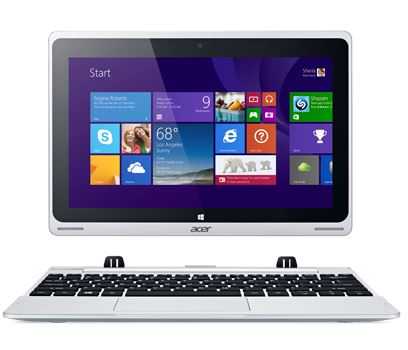
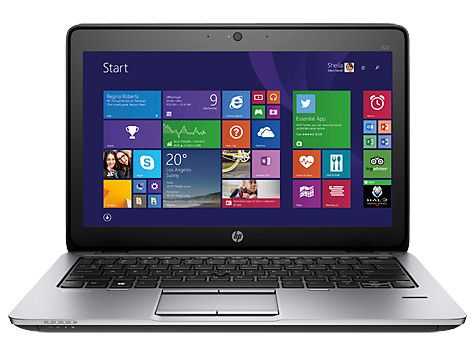
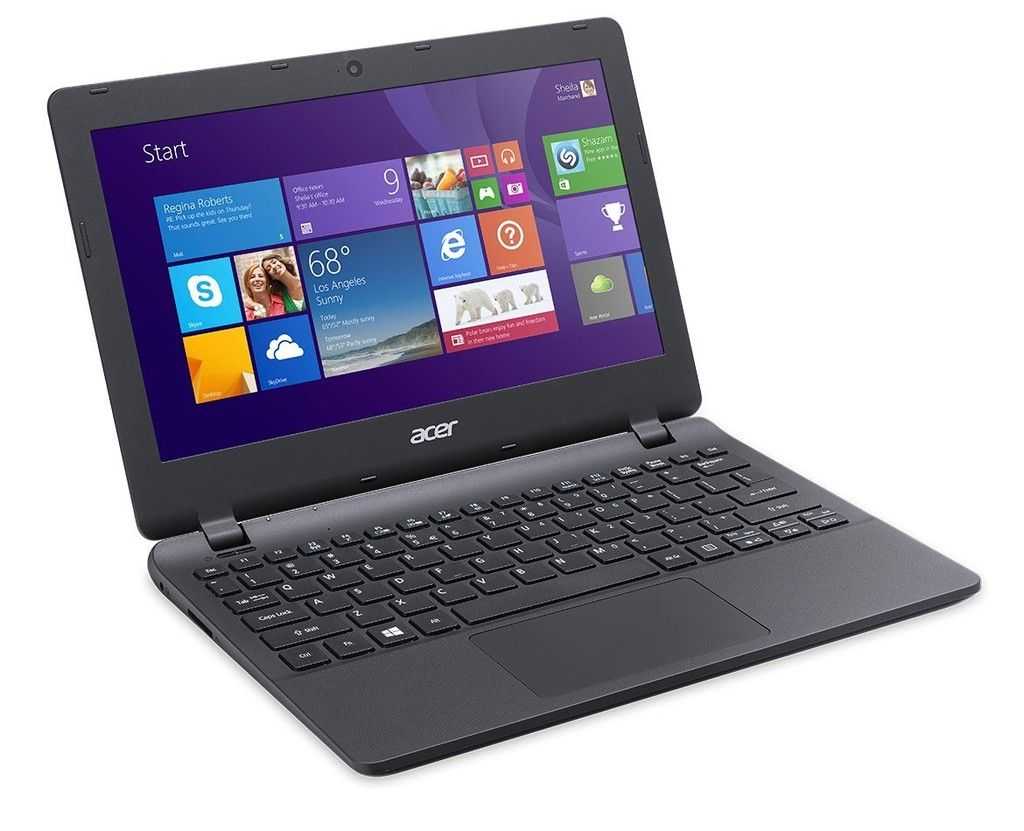
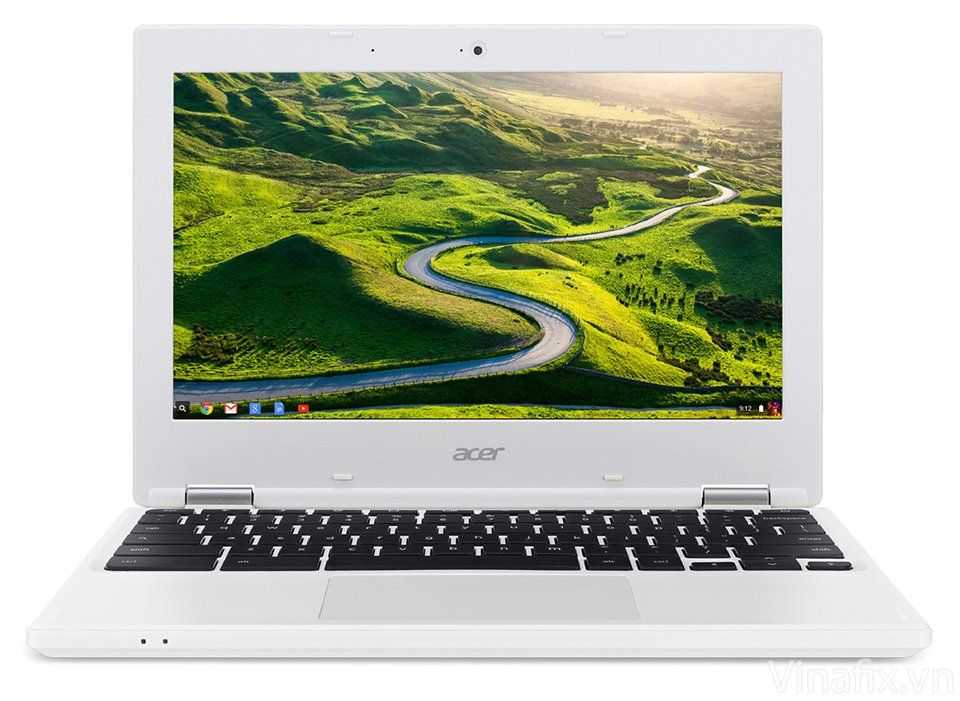
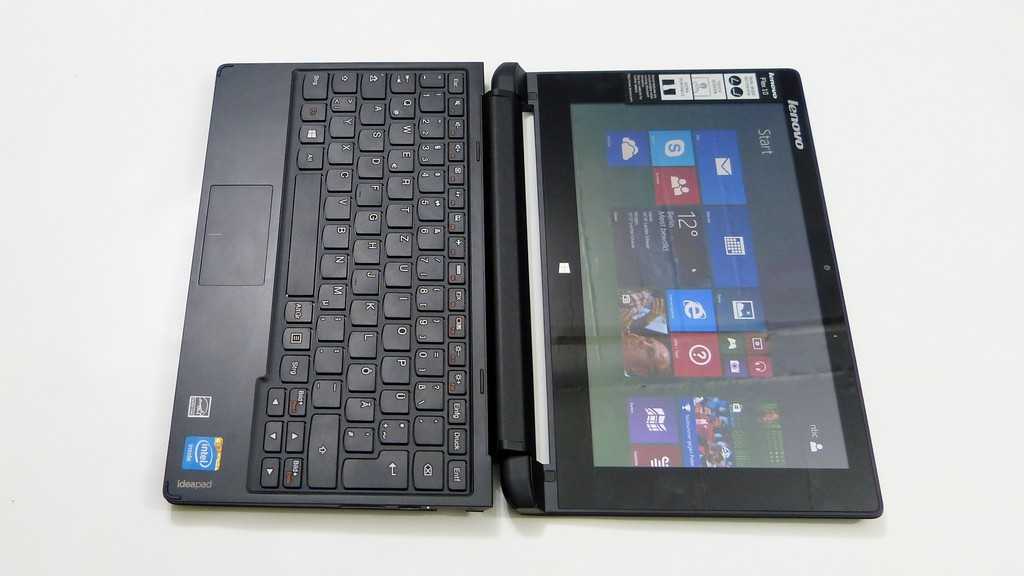
Finding greater popularity and responding to previous customer disappointment are devices with keyboards in various forms. This segment actually comprises two sub-segments. Devices with normal keyboards for a familiar desktop typing experience (netbooks or mini notebooks,) and thumbboard layouts. The desktop format keyboards appear mostly in the larger 7-10″ screened devices. Some of these notebook-style devices offer a convertible, swivel screen format where the device can be turned into a tablet. Thumbboards are being experimented with in many differing formats. From hidden, slide-out keyboards to split keyboards. Many more variants on this them are sure to appear. The convertible designs are aimed towards the higher end of the market but some convertible designs are now starting to filter down into the sub $1000 segment and are targeting consumers. A keyboard is an important element of the ultra mobile PC and should be considered carefully. Read reviews and look at statistics (some stats on the relative speeds of keyboards here ) but ultimately, try and get hands on.
For a more detailed look at keyboard types and how to choose between them, see the UMPCPortal article: Detailed tips for choosing a mobile computing keyboard

For most people, the keyboard (or lack of it) will be the first decision to be made and the answer will depend on how you intend to use your UMPC. (Sofa, Car, Bed, Office, Train, Plane, Coffee Shop, Customer premises) and how much you intend to input into the device. Will you use natural handwriting for brief but ultra lightweight operation or will you need a full keyboard for reports, emails or blogging. You may also be considering one as part of a multi-device line-up with a mobile phone and laptop. Thumbboards will naturally appeal to the younger customer but must not be ignored as a quick input method that, in two-handed operation can be a good balance between input speed and input volume.
When making your form factor choice for the first time, don’t underestimate the amount of time you might use (or learn to use) the device for web consumption in a social setting. Once you feel comfortable using a device on the sofa, bed, bus or coffee shop you might be surprised at how often you find yourself using the ultra mobile PC in these settings where having the lightest and longest battery life becomes very important and the keyboard, less so.


Operating system choices.
Choices on operating system in 2006 were limited to Windows XP and a couple of devices running Linux. In 2008 however, we have Windows Vista in the mix, a number of Linux distributions and some dedicated software stacks. If you already have a desktop PC and you run Windows, you might find it easier to get used to a Windows-based ultra mobile PC but bear in mind that in the long-run, it doesn’t always mean that it will be the most efficient choice. If you pair a Windows XP operating system with a 4.8″, high-resolution touchscreen device for example, the result might not be very satisfying. Generally, users are happier when they don’t have to change their known user interface or when they are confident that a new user interface has already reached general market acceptance. For productivity most users will be looking for a familiar desktop environment based on Windows.
The choice between Vista and XP depends on the hardware. The recommendation today is that for productivity, XP is generally better than Vista on currently available hardware due to the maturity of the driver software and smaller memory, disk and CPU requirements. There are a few devices being marketed now with Windows Vista pre-installed and as we move towards the point where Windows XP may not be available any more (estimated end of 2009), Vista or even Windows 7 may be the only choice. Vista is widely acknowledged as having a much better touch/handwriting support so if you are considering a slate type device, Vista would be a good option.
Apple OSX is not currently available on a mobile productivity devices but Apple have created a core system, based on OS X and some of the applications, that runs on their iPhone and iPod platform. Both of these devices can be considered for mobile Internet operations in the ‘MID’ segment.
Windows CE and Windows Mobile devices are available but as time goes on, the limitations of the applications and browser software are becoming more and more apparent. As a ‘thin client’ type of device that might use remote desktop or remote PC software to access and control a remote device over an IP network they can make cheap and very efficient devices but as standalone devices, limitations will become apparent with advanced web browsing (Flash, flash video, dynamic html, Ajax code) and with some media playback. Windows Mobile 6.5 and 7 is planned and we expect to see this in 2009 with a much improved user interface, browser and application suite.

During the later part of 2007 Ubuntu and RedFlag released early versions of their Linux distributions that included optimised interfaces and good support for Intel hardware. Even now though, in late 2008, these distributions are only suitable for further development by OEMS and only one or two examples of the distributions can be found in the market in the pocketable MID segment. The expectation is that these Linux-based operating systems will develop quickly into consumer-focused suites and become well supported but that may not happen until well into 2009.
Since the launch of the small ‘netbooks’ there have been efforts by many Linux operating system vendors such as Xandros, Linpus, SuSE and Canonical to produce more generic distributions and these can now be found on netbooks purchased online or in shops. While the quality, look and feel may not be as good as with XP or Vista, the cost is lower and the core set of applications is always available to the user. As netbooks gain in popularity with many millions of sales forecast, expect these distributions to evolve and develop into more polished options.
Screen
Screen sizes range from about 4 inches to 10″ and resolutions vary wildly from the small 480×320 of the iPod touch to 1280×768 and beyond. Perhaps a more useful figure to use is the PPI. (Pixels per Inch, also known as DPI – Dots per inch) For example, a 1024×600 resolution on a 4.8″ screen results in a DPI of around 250. Given standard font sizes on Windows operating systems, this can be extremely hard to read and only really possible when holding the device at about 15-20cm from the eyes. At the other end of the scale, 10″ devices with the same resolution result in a comfortable tablet-top readable figure of 120. Here are some tips for choosing screen sizes.
- For tabletop operation, 1024×600 at 9 or 10″ is generally acceptable without any adjustment of font sizes. a 7″ device at 1024×600 will require some adjustment of font sizes (to about 125%) for it to be comfortable.
- For handheld use, a 5.6 or 7″ device at 1024×600 provides acceptable reading quality.
- For touchscreen devices, a PPI of 150 or less can help with accessing standard font-size links and menu items with a finger.
- A device or application with a fast zoom can help in many scenarios.
- In most operating systems, the font size can be adjusted up to make typing and reading more comfortable but this reduces the amount of useable space on the screen.
- The design of 7″ screen devices can be too small to fit in a high quality touch-typing keyboard.
…and here are some comments based on screen sizes:
- 4.8″ Smallest for comfortable 800×480 hand-held work. Poor typing speed on most keyboards at this size but comfortable thumbing experience on sliders. Ideal for pocketable MIDs.
- 5.6″ Good handheld size for 1024×600 screen. Also works as an emergency table-top device. Thumbing still comfortable in most cases.
- 7″ Still small enough for handheld use but also useable for up to an hour on a tabletop. A tablet device allows you to go handheld when needed and then add a BT or USB keyboard for more comfort on the table. Probably the size limit for extended one-handed use with a touch-screen until components shrink to allow bigger screens for the same, circa 700gm, weight.
- 8.9″ Starting to get comfortable on a table for extended periods. 1hr + is easy. At this size, weights are usually about 1KG which makes single handed use or even /two-handed use difficult over longer periods.
- 10″ Very comfortable tabletop experience. Arguably the best size for travel and productivity work on a tabletop. 1.3-1.5KG is common though so its not a device you’ll be using in one or two hands which severely limits usage in some scenarios.
- Adjustable screens and foldable screens have been seen in a few designs but are not expected to be mainstream with fast refresh, colour and touch for another 3 years or more.
PPI figures can be found on the comparison pages of the product portal for nearly all devices. E.g. This comparison page here.
Screen brightness is another area to consider. The best screens now (and this is common on nearly all devices now) are using LED backlighting and offer a brightness of around 300 nits which is useable in a brightly lit room or bright bur shaded outdoor area. Some points to note here:
- Glossy screens may give too many reflections for outdoor use but are generally sharper and offer better contrast for use indoors.
- Touchscreen layers can significantly reduce the brightness of a screen.
- Older CCFL-backlit screens are to be avoided for mobile use as they are less-bright and consume significantly more battery than LED backlit screens.
- There are some specialist screens that use filters and transflective layers to improve the outdoor viewing experience.
- The higher the brightness, the more battery drain (usually about 10-15% less battery life on high screen brightness.)
- The bigger the screen, the higher the battery drain.
Touch and Pen input.
For those interested in using finger or stylus to drive an Ultra Mobile PC, consideration should be given to the varying types of touchscreen available.
The most commonly found tech technology is ‘resistive digitiser’ touch which uses a two-layer sensor mounted over the screen. Its cheap and easy to deploy but has disadvantages for those wishing to do natural input work as anything touching the screen, from stylus to finger to palm, will be registered. Handwriting input is possible but requires the user to adopt a palm-lifted approach to handwriting which isnt at all natural. Attempts are made to reduce this effect by making the touch layer less flexible and thus requiring a heavier per-mm press. This can work well in some cases if implemented well. Its known as ‘heavy’ touch. The weight needed to register on a touchscreen is often quoted in gm/mm2 where 80 would be a light touch (good for finger) and 120 would be a heavy (good for stylus) figure.
Active digitisers don’t register physical touch. They register the proximity of a special pen which must always be used on the device. These devices can support proximity sensitivity and work extremely well for those wishing to use natural handwriting on operating systems like XP (Tablet Edition) or certain versions of Vista.
Capacitive touchscreens are an alternative to light touch resistive digitisers and work extremely well in detecting finger contact without requiring a lot of pressure.
Multi-touch screens are a relatively new possibility and use the capacative method to register multiple touch points on a screen. Software can then convert this touches and movements into events such as scrolling, zooming and page-related events.
If you are looking to use natural handwriting input, our recommendation is to look for the active digitisers or for the heavy touch resistive digitisers that are often referred to as having ‘palm rejection’ capabilities.
Disks
Consider your disk-space requirements. Some people find 30GB to be restrictive. Others, that don’t need to take a video library with them, will find 30GB to be more than enough for storage requirements. There are speed and ruggedness issues to be considered too. The current range of disks can be broken down as follows.
Traditional 2.5″ laptop disks. Fast, cheap, good storage. They are however relatively big, sometimes noisy and consume a lot of power. These wont be found in the 4-7″ segment but can be found in the larger netbooks and notebook devices. For storage capacities over 80GB, these are one of the few options. Look for 5400 RPM drives and test results that indicate 40MB/s or more read speed.

1.8″ drives. Originally designed for use in MP3 players, these devices have found popularity now in the mid-range UMPCs. Capacities range from 20-80Gb and power and size requirements are low. They are more expensive per GB than the larger 2.5″ drives but offer a good compromise for the mid-range devices. Some cheaper, low-speed models can have a noticeable impact on the speed of the operating system but in general are acceptable for common operations. Highest speeds will be in the order of 30MB/s maximum read speed.
SSD devices. Solid state disks based on flash memory technology have no moving parts. They are lighter, consume less power generate less heat and are more rugged than the rotating drives. There are two types to watch out for. Low-cost MLC drives which offer good capacities and the high-speed SLC drives that offer higher read and write speeds but can cost a lot more.
MLC drives can range in speed from extremely slow to mid-range transfer rates (as fast as a 1.8″ rotating drive) although in general, are able to get to data more quickly for multiple small-size data operations. Unfortunately there is no way to tell from a devices specifications how fast the device is and the only recommendation here is to search for a device review that includes these disk test results. MLC drives are commonly used in the cheaper ‘netbook’ PCs and come in the 4-20GB size range which offer little opportunity to store media. For many operations though, very little storage is required and with external media cards such as SD and CF reaching 16 and 32GB capacities, this can be suitable for many people.
SLC drives are more tailored for the high-end of the market and can offer exceptional speeds that even exceed the bandwidth of the connecting bus. Only a small number of high-end devices are shipped with these drives (often as options) but there is a growing number of aftermarket options that can be used to boost the speed of a low-end device by a noticeable amount. Prices are currently in the range $80-500 for these devices and can be hard to find. Upgrading a device will often invalidate the warranty and can be difficult to achieve. Do your research before you take this path.
All SSD technologies are advancing very quickly and prices are dropping rapidly. We expect SSD storage solutions to overtake Hard Drive solutions in terms of popularity during 2009.
Online storage is an option gaining in popularity and can be useful for people that are always able to connect to the Internet via a Wifi or 3G connection. Access speeds are extremely slow compared to local drives but for small documents, can be useful as a user moves from device to device. An additional feature of some storage solutions is that you are able to edit some files while they are on remote servers through web-based applications. Google Docs is one example. Look for generic solutions that can be accessed as a virtual drive and take note of syncronisation solutions that can help with offline work.
Connectivity options
The options here are numerous. Here are some considerations and tips.

USB2.0 The most flexible and widely used interface is USB2.0. Through the USB connector you’ll be able to attach external disk drives, printers, DVD writers, wireless LAN modules, Bluetooth modules and many other devices. Fortunately, all UMPC’s have USB ports. For mid-range and netbook devices a minimum of two USB ports is recommended.
TIP: For tabletop operation and quasi-desktop setups, 3 USB ports is recommended. Some external devices also require two USB ports within close proximity of each other.
TIP: Some USB ports on mobile devices are not able to deliver high enough currents to drive some external disk drives or CDROMs.
FireWire is a similar style of connectivity to USB but not common at all so if you expect to download data using this method (often used with video cameras) you’ll need to look carefully at the specifications.
VGA outputs (to external monitors) are common on netbook devices but not always on the 4-10″ devices. DVI-out is only found on a few devices at the moment as is HDMI. Nearly all devices with VGA ports can be operated in ‘extended desktop’ modes which can greatly increase productivity levels. The exception here are some older devices based on the AMD Geode LX800 and LX900 CPU.
SD card slots are common on notebook-style devices but there are some smaller devices that use the smaller Mini-SD or Micro-SD standard. Some are not able to support the higher capacity SDHC cards (4GB+) so watch out for this. Transfer speeds can vary so make sure you test this if you plan to transfer large files using this method.

Headphone outputs are found on most devices but Mic inputs are sometimes left off in favor of a built-in mic. Some headphone ports are actually ‘headset’ ports that provide the headphone and mic ports in one socket.
PCMCIA is a standard that many used for expansion cards on laptops. This is found on some mobile devices but it has been largely phased out in favor of the ExpressCard slot. The slots are smaller but still only found on the bigger, more pro-mobile devices. These ports can be useful for 3G cards, SSD drives and some external 3D graphics adaptors. In general, most of these features are available through USB ports so unless you have specific requirements, it may not be a key feature for you.
Other ports to consider:
- SPDIF-out (digital audio) Rarely found but if required, can be implemented through a USB solution.
- Ethernet 10/100/1000, Many pro-mobile devices and note-book style devices include an Ethernet port. Gigabit Ethernet is sometimes found although some of the slower disks may be the bottleneck here.
- Docking connector. Often found on pro-mobile tablet devices and can be very useful in implementing a ‘dock and go’ style desktop.
- Video-out (analogue.) Rarely found on mobile devices.
- RJ-11 (Modem) Rarely found.
- Compact Flash slot. Rare
- Memory Stick slot. Sometimes integrated into a multi-card reader.
- Mobile SIM-card slot. See details on cellular Internet connectivity below.
Wireless connectivity.
The most important connection on your ultra mobile PC is likely to be the connection to the Internet and this is generally achieved through the use of a wireless data connection. For wireless connectivity in the home, in hotels, coffee shops and airports, WiFi is a must-have. WiFi types 802.11b (11mbps) and 802.11g (54mbps) are common. Support for 802.11a is not available on all devices but 802.11n, the latest standard, is starting to appear. Reception and power drain must be considered for Wifi and in general, a better antenna reduces the power requirements. Some older and often internal USB-module based Wifi solutions can be very heavy on battery usage. Again, this is something to look out for in detailed reviews.
Cellular Internet access, as provided by many mobile phone operators is rapidly gaining in popularity, speed and value and can be use for on-the-go Internet access in most populated areas either via a mobile phone (see below) or via a built-in cellular data modem that you can find on some ultra mobile devices today. The connection method, speed, type and cost of access will vary from area-to-area, country-to-country, provider to provider and even month-by-month! It’s a minefield just choosing a service let alone getting connected but when everything is working with a good provider the experience can be a step up from WiFi access when on the move. For users in some parts of the world, WiMax is starting to be offered. The early market in the US shows some signs of promise but in Europe, 3.5G and its successor, LTS, has too much market share and investment involved to allow a switch to WiMax. Look out for more detailed information on this topic in the 2009 edition of the buyers guide.
One of the common ways to access the Internet if a device has no built in cellular data module and there is no Wifi hotspot available is via a cellphone. Most cellphones have built in data modems that can be used via USB connection (often through provider-specific software) or by using a Bluetooth wireless connection which brings us to the third important wireless connectivity method. Bluetooth is often left out on cheaper devices so if you need to connect a cellphone (Note that contracts do not allow this ‘tethering’ process) or if you need to use one of the many other Bluetooth connectivity methods (known as profiles) in order to use a wireless headset, wireless speakers, to transfer images or to connect a wireless keyboard, make sure BT2.0 (or the newer BT2.1) is included. BT1.2 is not recommended due to its lower security standards, reduced range and reduced profile set. BT2.1 offers better security, a ‘near field’ paring option and improved power efficiency but is only just starting to become available. BT2.1 is backwards compatible with BT2.0 devices.
One ‘workaround’ solution to accessing a cellular Internet connection is to use a 3G/Wifi adaptor. These are usually battery-power routers that include a 3G modem and a WiFi modem and act as a bridge between the two. Were a 3G connection needs to be shared, the 3G routers can be a perfect and easy to use solution.
In Part 3, we look in detail at the CPUs currently available in the market, the graphics capabilities, memory, battery life and weight.