
13 Point Security Checklist. Prepare your Windows PC for better on-the-road security and privacy.

Posted on 25 February 2015, Last updated on 06 October 2024 by

wipe-97583_640-290x300_edited

I’m preparing to go to Mobile World Congress where one of my worries will be security and privacy. To that end I’ve hardened my Windows build and written it up below as a checklist of tasks that I urge you to look at and consider, especially if you’re connecting to unknown hotspots.

The checklist has evolved from work I did training journalists in Ukraine, work I’ve done here on Windows 8 tablet security and work I’ve done on Clean Computing with Chromebooks which, interestingly, would have a checklist just half as long as this. Points 1-7 don’t apply to a Chromebook. Unfortunately I’ll be needing video editing and gallery management tools in Barcelona so I can’t use a Chromebook as my main PC there.

The Lucky 13 Checklist for Better Windows PC Privacy and Security.

    1. If possible, use a PC with an encrypted disk. (Microsoft Bitlocker is available for free on some low-cost Windows devices and on all Windows ‘Pro’ installations. E.g. All Surface Pro devices.)
    2. Turn on SecureBoot in your BIOS if possible and (as a minimum) add a BIOS boot (or BIOS admin) password. Create a long 15+ character Windows password for all Windows accounts.
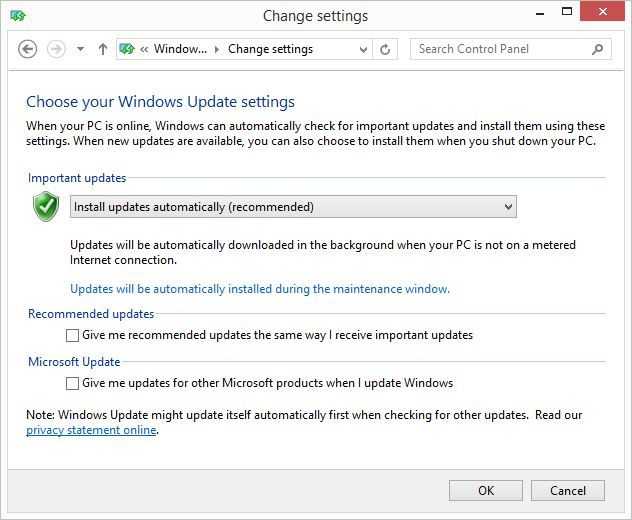
    3. Install Windows Updates and turn on update notifications. (You may not want automatic updates to download while on a hotspot.) You can also set your WiFi to be a ‘metered connection’ which will disable some network services from running. Set the WiFi to be a ‘public’ hotspot (don’t enable file sharing and discovery.)
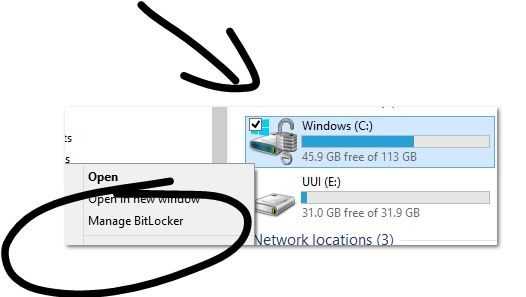
Encrypt
Encrypt
Update
Update
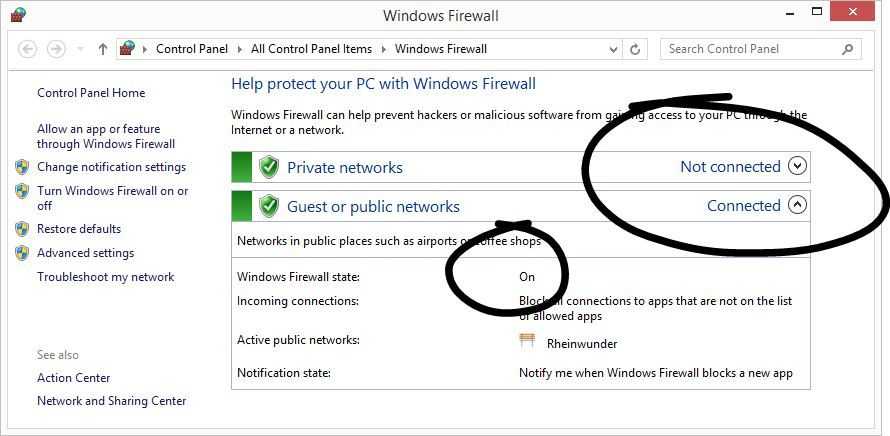
  • Check that Windows Firewall is on.
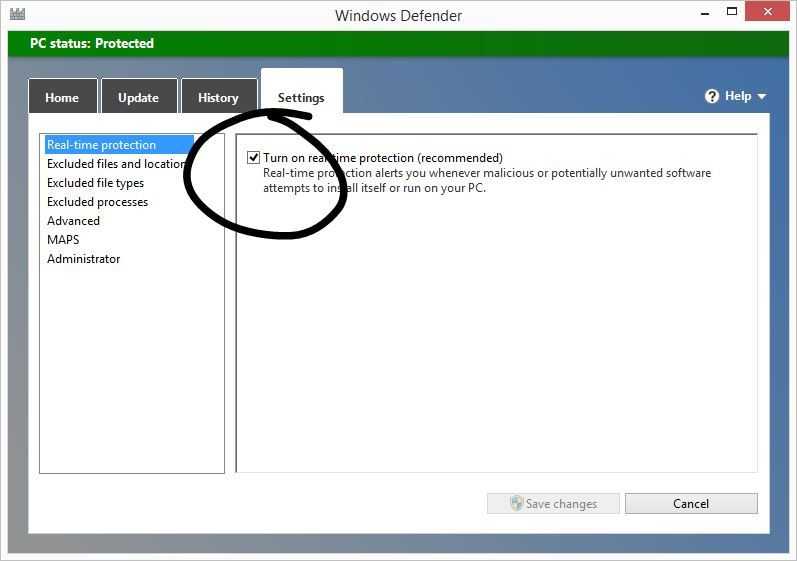
  • Update anti-virus and run a full scan. Windows has a built-in service called Defender if you don’t have a third-party solution.
  • Firewall
    Firewall
    Windows Defender
    Windows Defender
  • Run CCleaner (also check and clean the auto-start-up list.) and Spybot.
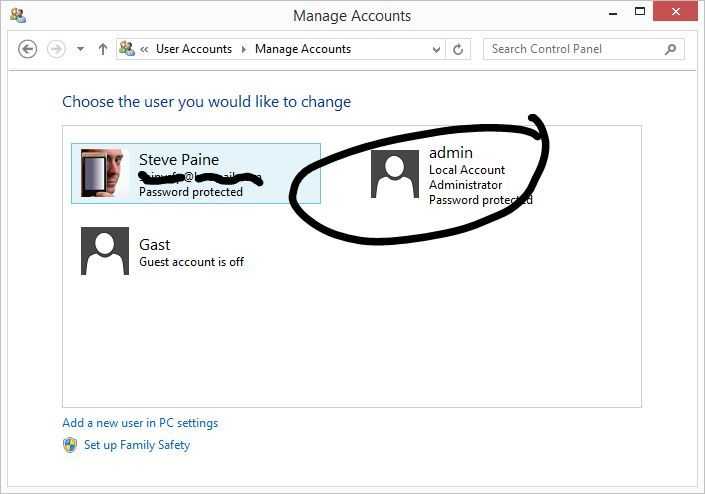
  • Create a non-admin account. Log out and log back in to the non-administrator account. For more privacy, don’t log in via a provider ‘cloud’ account (E.g. Microsoft, Google accounts) although some of these cloud accounts have some good security features. (login accounting, remote password change, two-stage passwords.
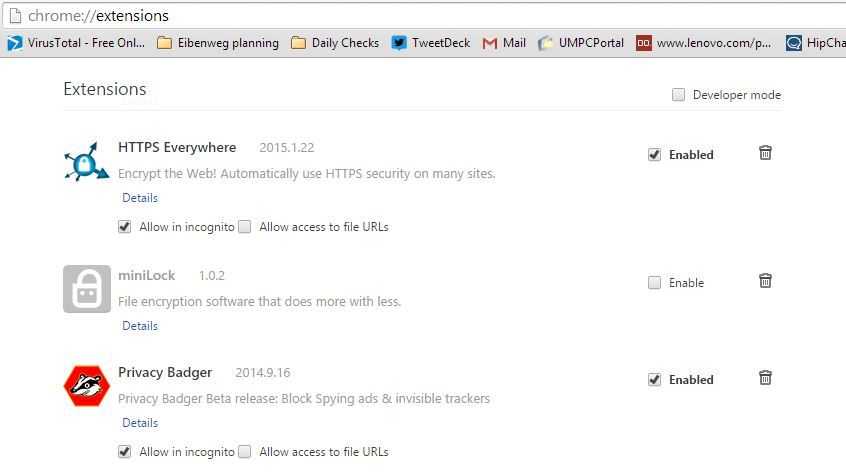
  • Use up-to-date Chrome with HTTPS Everywhere, Privacy Badger extensions enabled, others disabled where possible. Don’t link Chrome to a Google account unless you trust Google. (Run an Incognito browser Window.)
  • Chrome Extensions
    Chrome Extensions
    User accounts
    User accounts
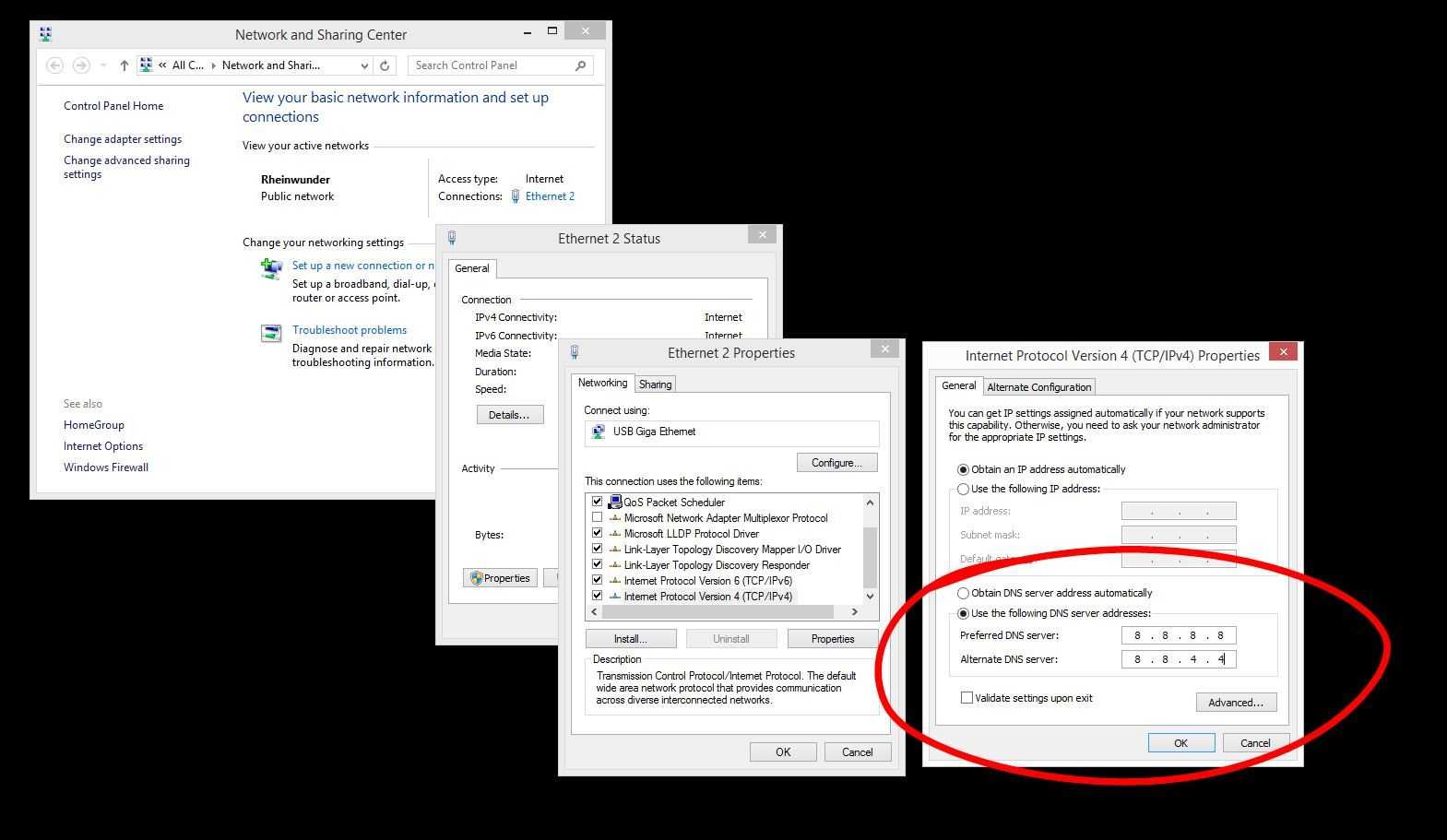
  • Hardwire your DNS to your ISP. If you trust Google, they have a good DNS service at 8.8.8.8 and 8.8.4.4. (Don’t use the DNS given by the hotspot)
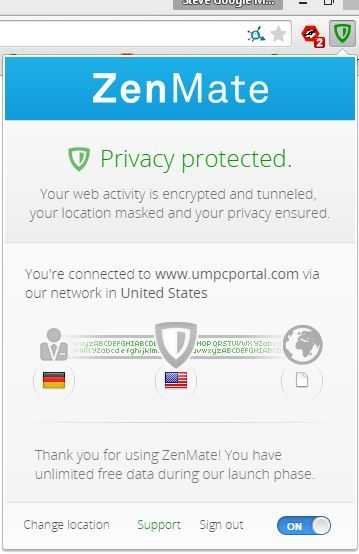
  • Use the Zenmate extension to tunnel and encrypt web traffic or buy a good VPN to tunnel all traffic. (I’m using HideIPVPN’s UK tunnel.)
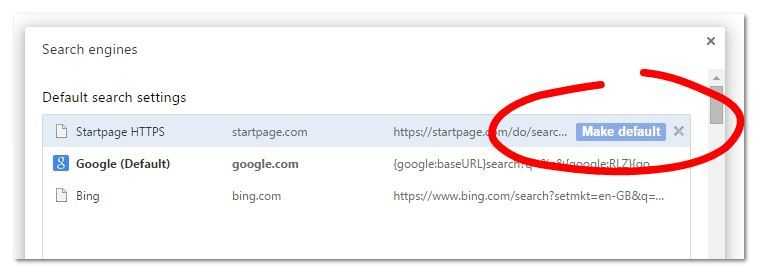
  • Use Startpage.com as search engine if you don’t want Google to store your searches / IP address. Startpage can also be used as a proxy.
  • Zenmate HTTP tunnel
    Zenmate HTTP tunnel
    Hardwired DNS
    Hardwired DNS
    Startpage search
    Startpage search
  • Avoid using cellular data if you don’t want to be location tracked. (Turn off A-GPS / location services on phone too.)
  • Do not leave your PC unattended.
  • Again, if you’re using a Chromebook, points 1 – 7 don’t apply. Note that you can Power Wash a Chromebook in 60 seconds and use the Guest account to avoid Google tracking. (VPN and DNS work in guest mode.)

    Due to time constraints I haven’t been able to link all the items to how-to articles but I’m sure you know how to use Google search to find the information. If not, please buy a Chromebook and start from point 8.

    Update: Screen image hints added.
    2 Comments For This Post

    1. surface says:

      I’ll add a new one: Don’t use a Lenovo laptop, sorry couldn’t resist ;)

    2. animatio says:

      use windows firewall control to set up your windows firewall for each application.
      activate automatic memory scan after upgrading/actualizing in your anti-virus software.

    Popular mobile computers on UMPCPortal

    1. 1Acer C74011.6" Intel Celeron 3205Uno change this week
    2. 2Acer Aspire S3 (Haswell)13.3" Intel Core 4th-Gen (Haswell)up 19 places this week19
    3. 3HP Elitebook 820 G212.5" Intel Core i5 5300Udown 1 places this week1
    4. 4Lenovo Thinkpad X22012.5" Intel Core i5down 1 places this week1
    5. 5Acer Aspire Switch 1010.1" Intel Atom Z3745no change this week
    6. 6Acer Aspire E11 ES111.6" Intel Celeron N2840down 1 places this week1
    7. 7Dell Latitude E744014" Intel Core i5-4200Uup 2 places this week2
    8. 8GPD Pocket 27" Intel Core m3-8100Yup 8 places this week8
    9. 9Toshiba Encore 2 Write 1010.1" Intel Atom Z3735Eup 169 places this week169
    10. 10ASUS Zenbook UX30513.3" Intel Core M 5Y10adown 3 places this week3

    Most viewed devices on UMPCPortal over the last 7 days, updated daily. Lines: visitors over the last 30 days.

    Find ultra mobile PCs, Ultrabooks, Netbooks and UMPCs quickly using the following links: