


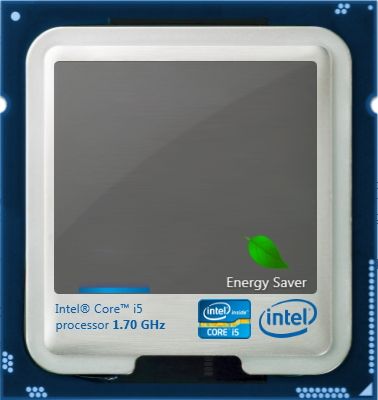
Intel’s Core processors dynamically adjust the speed of your Ultrabook’s CPU to give you power when you need it and battery savings when you don’t. The battery savings come when your Core processor intelligently clocks itself down to the minimum level during tasks that don’t require much power. For instance, as I write this and listen to a song in the background my processor is in ‘Energy Saver’ mode where unneeded cores are disabled to save power and active cores are clocked down. Ensuring that your Ultrabook is correctly downclocking and entering Energy Saver mode is vital to achieving maximum battery life. Inefficient programs or processes running in the background of your Ultrabook could be preventing you from getting the most from your battery; this guide will show you how to get rid of them.
Turbo Boost Monitor
Unruly programs that run in the background could be preventing your Ultrabook from entering into Energy Saver mode. Intel’s Turbo Boost Monitor lets you see the current status of your processor. Many Ultrabooks come with the Tubo Boost Monitor pre-installed. Check your Ultrabook by typing ‘intel turbo boost’ into the start menu. You should see ‘Intel Turbo Boost Technology Monitor 2.0’ return as a result. Launch it. If you don’t have it, install it using the link below:
Intel Turbo Boost Monitor Download
Note: According to Intel, the Turbo Boost Monitor will only work on Core i5 and Core i7 processors. Some Ultrabooks are equipped with Core i3 processors and may not be compatible (let us know in the comments if you give it a try on an i3 Ultrabook).
With all applications closed you should find that your Ultrabook enters Energy Saver mode. Even with Chrome, Spotify, and several Explorer windows open, my UX31 enters into Energy Saver mode with no issues. In addition to reducing power by disabling and downclock cores, Energy Saver mode produces less heat which means your fan doesn’t have to run as much; this results in even more power savings. However, some applications may be operating in the background that are preventing your Ultrabook from clocking down to Energy Saver mode.
Finding Offending Programs and Processes
If you find that your Ultrabook isn’t appropriately entering Energy Saver, the best place to start looking for the culprit is in the Task Manager which you can open through ctrl+alt+delete (or ctrl+shift+esc if you’re a pro). Switch to the ‘Processes’ tab and sort by the CPU field. This will show which currently running processes are using what percent of the processor:
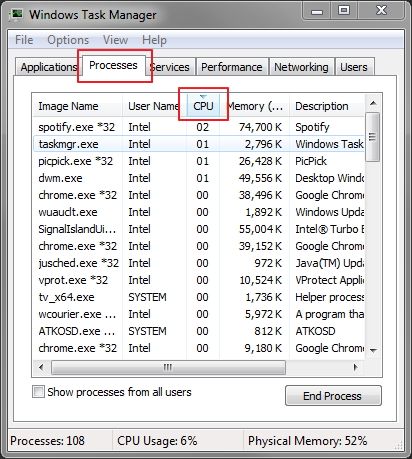
In the screenshot above I don’t have much hogging my processor but you may find that some process is grabbing processing power and preventing your processor from downclocking to Energy Saver. If you find a process that you suspect to be the culprit, take note the name somewhere and then highlight it and hit the ‘End Process’ button at the bottom right of the Task Manager. Keep an eye on your Turbo Boost Monitor to see if your Ultrabook successfully enters Energy Saver (and be sure that it stays there) after removing the process. The offending process will likely return after a restart and ruin your power savings all over again; I’d recommend Googling the name to track down what it belongs to and see if it can safely be uninstalled.
Pages: 1 2




I really like these longer and informative posts. Keep up the good work… man I sound like one of those spam bots I get all the time on my blog. :)
I love seeing articles on maximizing battery life. Now I’m just waiting for the article on Ivybridge’s 13 Watt TDP mode and associated testing… ; )
I’m yet to see it being user switchable in a retail Ultrabook. Hopefully soon tho.
You’re right. I just checked out 2 Ivybridge ultrabooks yesterday and neither had a configurable option buried anywhere in the advanced power profile settings…. ; (
Any battery saving techniques for Linux other than PowerTOP?
You could use Jupiter, although most of the power regressions have been in the kernel itself lately. 3.5 fixes and improves power management a lot. From what I heard, 3.6 is supposed to bring even more significant optimizations that almost brings parity to Window$!
http://www.jupiterapplet.org/
Turbo Boost Monitor is useless for Core i3-models, considering they all lack (CPU) Turbo Boost.
But, if it will install on Core i3, it will allow you to see that your CPU is correctly entering into Energy Saver mode. Turbo Boost is only the function that overclocks past the standard clock speed, all Core CPUs can enter Energy Saver though.
Anyone know of any battery life comparisons between default installs of Windows 7 and Ubuntu 12.04 on the same notebook with the same usage patterns? I’m still using Ubuntu 10.04 and would like to see how 12.04 fares without any kind of tweaks. Thanks.
I’m interested in this too. I’d like to know what kind of battery life loss I can expect with 12.04 when compared to Windows 7. Hopefully, there are some power saving enhancements in the new LTS beyond just the new kernel so I don’t have to spend time installing 3rd party power management scripts.