


Software
Smart Connect
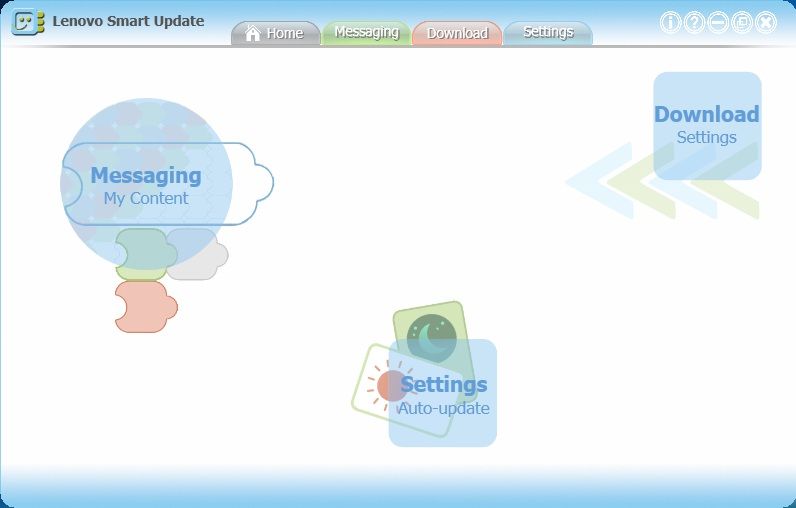
Lenovo’s Smart Connect app (called ‘Lenovo Smart Update’ is designed to take advantage of an Intel’s Smart Connect functionality (which we’ve previously questioned due to dubious usefulness). The interface is quite honestly awful and the program appears to have been written in-house.
Not only is it not clear to a new user exactly what the program does, it is confusing to use thanks to a very poorly though-out UI. Not only this, but the program is buggy — sometimes permanently hogging 25% of the CPU even when Smart Connect is disabled — this causes games to stutter and become unplayable and drags performance on the rest of the system down; this is likely to cause troubleshooting nightmares for many. For many it will likely be nothing but an invisible daemon sucking performance from less computer savvy folks who don’t know how to diagnose the issue. Battery life also suffers from Smart Update because when the program is bugged in this way it prevents the processor from entering into Energy Saver mode.
For anyone with a U310 who doesn’t need Smart Update (likely the vast majority of you), I’d highly recommend uninstalling Lenovo Smart Update outright to avoid issues.
One Key Recovery
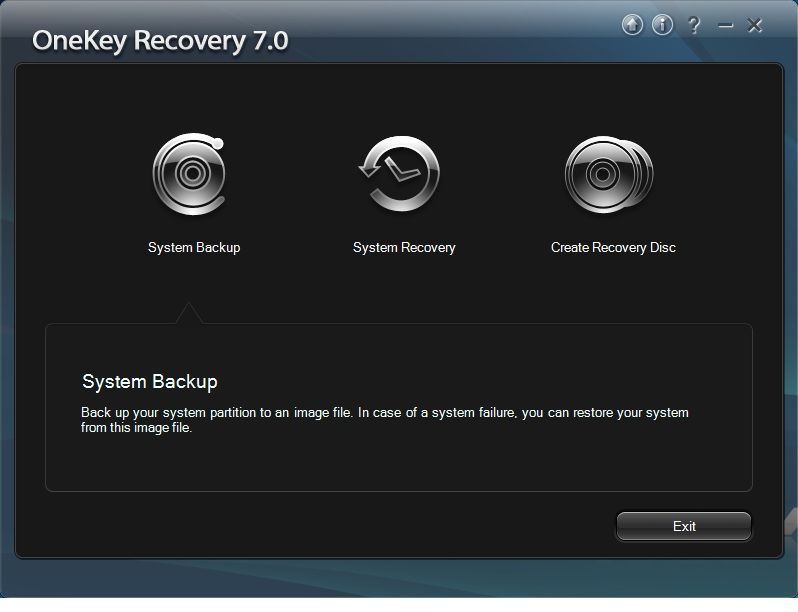
Lenovo has included a handy button on the side of the U310 that helps the user to perform a factory recovery of the Ultrabook. This is a sort of sad admission that factory-recoveries are generally part of a PC-user’s life. Regardless, with the press of a the button, the user is presented with a dialog asking if they’re like to do a backup, recovery, or to create recovery disks.
Creating recovery disks is an interesting offering considering that the U310 lacks an optical drive. If you don’t have a USB optical drive then you’re out of luck as there is no option to make a bootable USB stick.
The recovery option launches into a pre-Windows environment with options to do a virus scan or system recovery. The virus scan is likely not very effective as it cannot connect to update virus definitions over WiFi (you need to be plugged into LAN), but the McAfee-based virus software doesn’t indicate this so I’m sure it will be of little use anyone but proficient users.
The pre-boot environment can be used to do a factory restore which reaches into a hidden partition to restore the computer to its out-of-the-box state. As far as I can tell, there are no warnings when doing the recovery that it will wipe all files and software — something that battle-hardened PC users will know, but the very demographic that would need a one-touch recovery button would not.
Power Management Options
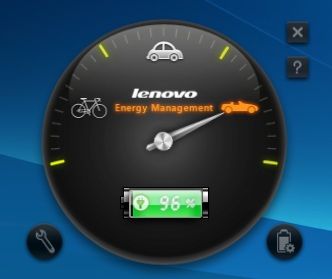
As with other Ultrabooks, Lenovo decided to bake-in their own power management software that semi-supersedes the default Windows power-management options and semi-utilizes them. Sound confusing? It is, especially for computer novices.
Here’s how it works: Lenovo’s power management interface has three options for power management, ‘Power Saver’, ‘Balanced’, and ‘High Performance’. Now, if you’re a Windows user you’ll recognize these three as the default options and that’s relevant because they are. What Lenovo has provided is little more that a graphical shell for the standard Windows options. However, and this is the important part, Lenovo presents these three options with no context. To a novice user, it would seem that when you are on battery, you should select ‘Battery Saver’, and when you are plugged in and want performance, you should select ‘High Performance’. Of course this isn’t the case; each of these three actually has separate configurations for when the computer is running on battery power or when it is plugged-in. The power management shell that Lenovo has created makes no effort to indicate this and is thus little more than a redundant layer of extra confusion.
There is one or two interesting things you can do with Lenovo’s power management program (ok, maybe three). First you can use it to set the U310 into a ‘battery protection mode’ which keeps the battery at 50% charge to protect the battery’s charge-life. Lenovo is recommending this for people who use their U310 at the desk the vast majority of the time.
Second, there is a ‘fan dust extraction’ button that can be pressed. This revs up the fan on and off for a few minutes to try to expel some dust from the inside of the device. This is a nice touch considering most of these Ultrabooks are uni-body or faux-unibody and thus quite hard to open for any sort of cleaning.
Third, you can run a ‘battery gauge test’ which will fully charge then discharge the battery to re-calibrate the battery level indicator, making it more accurate after the battery has been worn down some.
Continue Reading on Page 4 (Performance)



you can prevent the disabling of the touchpad while typing: in the synaptics control panel, move the slider under the “PalmCheck” setting to minimum.
contrary to your experience, i’m really happy with this laptop:
– the build quality isn’t the best, but you need to look carefully to notice that
– the touchpad is one of the best i’ve used
– the bezel around the screen is not wider than on other laptops
– i actually like the low-res screen, since it makes text more readable (i have normal eyesight), the brightness could be better though
– the speakers aren’t great, but good enough for youtube’n’stuff, not significantly worse than on other laptops
– the only real drawback would be the wifi issues
for the price, it’s a really great machine.
the keyboard doesnt seem to be backlit?
Correct, it is not backlit.