Tag Archive | "slate"

Ocosmos OCS9 Windows 7 Slate, Get $50-off from Dynamism [video]

Tags: , , , , ,


ocosmos osc9The elusive company is back with the Ocosmos OCS9 — Ocosmos has tantalized us with awesome UMPC concepts for years, but the devices have always turned to vaporware seemingly just prior to release. Well, it seems Ocosmos is at it again, but this time, we’re certain that they’ll actually be bringing a product to market, thanks to the folks at Dynamism.

Surprisingly, Ocosmos actually showed up at last month’s IDF, only after Chippy, Avram Piltch (of LaptopMag), and I chatted about how unlikely it would be! The Ocosmos OCS9 was on display as well as the Android powered “Smart O-bar” controller. Here’s our hands-on (unfortunately we lost the first 50 seconds of audio to technical difficulties!):

The Smart O-bar has a 3.5” 320 x 480 touchscreen as well as two hybrid D-pads (they move like a joy stick, but have individual directional buttons as well) and shoulder buttons. The Smart O-bar is designed to be complimentary to the Ocosmos OCS9, allowing you to connect it for keyboard input and for use as a game controller.

According to the company, the Ocosmos OCS9 is the world’s thinnest Windows Slate, and at 11.9mm, that might just be true. Here are the specs:

Processor
Intel Atom Z670 (Oak Trail) CPU (1.5GHz)Memory
DDR2 2GB RAMDisplay
10.1″ MVA-TFT LCD Display
1280×800 Display ResolutionIntegrated Ports
2x USB 2.0
1x microSD Card Reader (up to 32GB)
1x HDMI (via Docking Station)Power
Li-Polymer (3650mAh)
Up to six hours battery lifeOperating System
Windows 7 Home Premium (32-bit)
Motherboard Features
Intel SM35 express chipsetStorage
16 / 32GB SSDCommunication
802.11 WiFi b/g/n
Bluetooth 3.0
GPSInput/Output
Front-facing 1.3MP WebcamPhysical Features
267 x 173 x 11.9mm

There’s also a few accessories available for the Ocosmos OCS9, including a nice looking dock, a keyboard folio, and even a bag. These will run $70 for the first two, and $90 for the latter. The Smart O-bar is optional as well and is offered for $140.

And the price for the Ocosmos OCS9? Actually, a rather reasonable $699. Dynamism is taking pre-orders for the unit and is giving an additional $50 off for those who order before November 18th, bringing the price to $649. They expect the unit to ship on the 30th of November. We’ll have one on hand for review in the coming weeks.

Lenovo Ideapad P1. Lightweight Tablet with Digitiser, Multi-Boot Possibilities

Tags: , , , , , ,


Go into our product database, select Tablet Devices (Windows), click the weight and screen size column headers and you’ll get a list showing the lightest 10” Windows Tablet. The only device that comes in at under 800gm is the Viliv X10 which, as we now know, isn’t going to happen. The Lenovo Ideapad P1will be dropping into that list very shortly as one of the lightest Windows Tablets there is. It’s a trend that’s happening more and more now that Oaktrail is here. The great thing is that battery life is going up at the same time and this one even has a digitiser layer. We broke news about the P1 when it was being referred to as the Ideapad Slate back at CES. Lets take a closer look.

Ideapad_P1

Full gallery here.

Full specifications and news tracking  here.

The Ideapad P1 will go head-to-head with devices like the HP Slate 500 and Fujitsu Q550 as alternative dual-input slates but I have a feeling the P1 will get quite a lot of attention based on the name.

The 1.5Ghz Oaktrail platform is certainly not going to be a powerful one. Unzipping large packages will be a chore as will any serious multitasking but the battery life should compensate for that with something like a 6W average drain. Expect the P1 to last for 6hrs with Wifi on. The digitiser layer, 3G options, 2GB RAM options, 32GB or 64GB SSD storage, Windows 7 OS options, a docking port and a high-resolution 1280×800 screen mean this is likely to be interesting to many of our audience here.

The other interesting thing is the possibility of Meego and Android for the Ideapad P1. Lenovo have good relationship with the Intel marketing groups. The Ideapad S10 3T was used as a reference netbook for Meego development so there’s a good chance that the Ideapad P1 will get picked up as a reference Oaktrail device for Meego and Android and that could mean even longer battery life and a good reason to think about a 7” version. In fact, reading through the presentation PDF (Available here), it also looks like Lenovo might be offering an app-store. This could be Intel AppUp-based which leans further towards an Intel relationship and increases the chances of Lenovo exploring a Meego build. Yes, it’s a tenuous link but one we need to keep an eye on. Meego-based Chromepad anyone? Multi-boot on this tablet could give the user an important choice.

The Lenovo Ideapad P1 is, unfortunately, targeted for Q4 which means we’ll probably see it at IDF and IFA shows in September with availability in October or November. It’s a shame it’s taking this long to bring it to market as for those that see more than Engadgets fasion-focused eyes, this is an interesting option.

Onkyo TW317 Slate Full Review

Tags: , , , , ,


IMG_3696

This device was graciously provided by Dynamism for review.

Oh where to begin with this review…

The Onkyo TW317 [tracking page] is a rare breed of soon-to-be-extinct computer known as a “capacitive touchscreen Windows 7 Slate”. What this means is that the TW317 lacks a real keyboard or mouse. Unlike some other slates which add accurate handwriting and mouse-hovering abilities with an active digitizer — which supplement the removal of the keyboard/mouse —  the TW317 relies completely on its capacitive touchscreen for finger-based input.

To put this into perspective, may I ask you if you’d like to purchase a car from me? I’ll give you a great deal, but there’s some caveats… the car doesn’t have a steering wheel or tries. Did I mention that you can find other, more powerful, versatile, and usable cars on the market for less?

Here’s what you need to understand before reading any further: removing the keyboard and mouse from a Windows computer, and not adding an active digitizer, makes it fundamentally harder to be productive (or to just use the computer for anything, really). While the parts of the computer itself may be perfectly well made and put together, you will run into annoying situations (frequently) where your controls on this computer are not conducive to what you actually want to accomplish. For further reading on this, see here.

In fact, you’ll find that some of the limitations of a mouseless and keyboardless Windows computer nearly prevented me from bringing you a large portion of this review…

With that fresh in your mind, let’s begin.

Tour

Here’s a quick look around the hardware as well as the specs:

IMG_3713

IMG_3710

IMG_3715

And that’s really all there is to it. Pretty simple, huh? Here’s a full spec breakdown:

  • Windows 7 Home Premium
  • 10.1” capacitive touchscreen @ 1366×768 (16:9)
  • Intel Atom N450 CPU @ 1.66GHz
  • 1GB of RAM
  • Intel 3150 graphics
  • 32GB SSD
  • WiFi b/g/n & Bluetooth 2.1
  • 0.3MP front-facing camera
  • 1000gm

Hardware

IMG_3706The Onkyo TW317 is actually quite impressive when it comes to hardware. Considering that we’ve got x86 internals inside the casing, Onkyo did a superb job at keeping it thin. The TW317 is only slightly thicker than many of the mobile-OS slates currently on the market.

IMG_3721There’s a small fan inside, but it runs quietly most of the time and vents out the top of the device which is good because your hands won’t usually be covering the port, and the heat won’t be venting directly into your lap. Though the back does get hot after continuous use.

When you pull the TW317 out of the box, you know it’s a well-built product. You can feel it all the way around. Shake the device and what do you hear? Nothing. It’s almost as if there are no moving parts (there are probably very few beside the fan).

Design

IMG_3703As a Slate, there isn’t a lot you can do to make the device aesthetically interesting beyond the choice of casing material, but they at least attempted to keep the TW317 from being totally bland.

The glass on the front of the device extends over the bezel which keeps everything on the front on one plane (this is good). There isn’t much to look at on the front except a simple Intel Atom sicker. The black bezel is about 3/4” on the left, right, and top of the screen, while it’s more like 1” below the screen. Though a wide bezel is usually an undesirable trait, when it comes to slates, it’s necessary to be able to hold the device without accidentally pressing the screen.

The corners of the screen are square while the corners of the device itself are round. This creates an unsatisfying aesthetic that could have probably been avoided by making the corners of the device tighter, and then moving the corner of the screen to be aligned horizontally and vertically with the beginning of the curve of the device’s corner.

That being said, the TW317 is quite heavy and it’s also quite a bit longer than it is tall because of the 16:9 shape of the screen. This means that you’ll have a lot of leverage working against your wrist if you attempt to hold it in one hand from the side in landscape mode. Holding it in the center (using the large bezel space below the screen with your thumb) works pretty well, but only being able to use the Slate with one hand really limits your ability to input text (which is already limited because the on-screen keyboard is not nearly as fast/responsive as a real keyboard, or other mobile OS OSKs {iOS, Android, etc}).

IMG_3709The back of the device is a rubberized plastic, a material that I tend to like as it won’t scratch easily like aluminum. There’s also a curved line toward the top of the back to make it a bit less boring. There’s almost no flex of the back, even in the center where support is usually the worst. This again attests to the device’s great build-quality.

The back rounds into the front which makes it easier to pick up with one hand than if it were completely flat. On certain surfaces like my desk, however, it’s almost impossible to pick the TW317 up with one hand from the top or bottom, as the static friction is overcome before you can apply enough force to get your fingers underneath the device. Grabbing from the right side of the device, or going for one of the port openings (the left side or bottom dock connector), makes it possible to pick up with one hand because it’s easier to get underneath.

The bezel hangs closely over the USB ports on the right side of the TW137, so if you have any particularly bulky USB plugs, don’t anticipate being able to plug them in without an extension/hub. For instance, the LG LV600 4G USB modem would never fit.

Screen

IMG_3698The TW317’s 10.1” capacitive touchscreen has a 16:9 resolution of 1366×768. The 16:9 ratio makes the tablet wider than it is tall which isn’t preferable with a slate as the center of gravity is further from the edges and there is potential for extra leverage on your hand. This means that holding sessions will become tiresome after short periods, and holding it above you while lying down is pretty much impractical as you’d need to put your palm over much of the screen in order to get enough support to resist the weight of the device.

The viewing angles are poor and you’ll see brightness reduce greatly at 20 degrees or so, with colors beginning to invert around +/- 45 degrees (in this case, looking directly at the screen is 0 degrees). Because the device is heavy, and is used most effectively with two hands, you’ll be prompted to set it in your lap. Unfortunately the viewing angles don’t jive with this as you will rarely be looking directly down at the tablet in your lap (otherwise you’ll be risking serious neck strain).

Tapping items on the screen is definitely a bit easier and more consistent than devices from the resistive-screen era, but if you are imagining the responsive and accurate touch input that we’ve become accustomed to with modern smartphones, don’t get your hopes up. You’re likely to experience a lot of frustrating near-misses when attempting to navigate around the OS. Grabbing windows to resize them, in particular, is a major pain.

One issue with the screen I found was that tapping in the very bottom-right corner was difficult at times. This could be a calibration or hardware issue.

Speakers

The stereo speakers on the bottom of the device actually weren’t as bad as I was expecting. They are completely lacking bass which isn’t unexpected, but they sound much less tinny than I was anticipating.

Software

win 7 logoIf you’d like a good laugh, you should absolutely head to this page and watch the brief “Windows Touch” video from Microsoft. The irony (and awful acting) contained within couldn’t be more hilarious. To be fair, they are talking about using a device that actually has a keyboard and mouse, most of the blame here should be placed on Onkyo and any other capacitive touchscreen slate manufacturer that thinks that keyboard and mouseless slates running Windows 7 are a good idea.

Remember how I was telling you at the beginning of this review that you’ll run into issues operating a Windows slate because it lacks a keyboard and mouse? Well it turns out that I’m currently experiencing this, and it nearly inhibited my ability to bring you much of this review.

It turns out that the BIOS has rudimentary cursor support with the touchscreen, which I wasn’t actually expecting. However, portions of the BIOS/pre-boot environment do not have any touchscreen support, which means that if you don’t have a USB keyboard on you, you won’t be able to use your computer. And as it turns out, I didn’t have a USB keyboard on me, so the Onkyo TW317 was an unusable paper-weight for quite some time. Fortunately I’ve managed to get one and was able to break out of the BIOS in order to continue reviewing the device.

This is just one of several examples of how a keyboardless/mouseless Windows computer is a total joke when it comes to usability. It’s not just the fact that entering text on the OSK is far slower than with a real keyboard, or that the inability to float the mouse renders plenty of programs hard or impossible to use, but could you imagine taking your Onkyo TW317 on an important business trip and having to tell your boss: “Sorry, I can’t send those vital reports because I forgot to pack a USB keyboard, and the computer is stuck in the BIOS”? That’s just insane; no normal user should have run into such a stupid situation because the computer lacks the basic tools necessary to interact with it.

Sumocat, resident tablet PC expert from Gottabemobile.com, has informed me that Microsoft had once-upon-a-time set up some slate-device guidelines which specified that slate devices such as the TW317 be fitted with D-pads to ensure that they are fully compatible with the OS and the BIOS. It’s not clear whether Microsoft is still publishing such guidelines, but what is clear is that Onkyo decided not to equip the device with a D-pad, and users will suffer because of it.

As with the Asus R50A of old, I found redundant built-in utilities. Two different utilities that would run automatically both wanted to control the brightness and wireless radios of the device.

Automatic rotation of the screen orientation absolutely would not work on the Onkyo TW317 even though it was supposed to. No amount of playing with the utility that had the auto-rotate option seemed to help. Not sure if this is a software or hardware problem, but you can at least manually change the orientation.

I’ve got a video that was taken a little while back that will give you a decent idea of what the touch experience is like on the TW317:

Keyboard

keyboardThe keyboard brings new meaning to the phrase “hunt and peck.” Each key-press must be very deliberately placed which is a real pain. There’s extremely rudimentary predictive-text, but in a world of great OSKs (on-screen-keyboards) being offered from Android, iOS, and even WP7, the OSK on the TW317 simply doesn’t stand up. This keyboard is hardly good for entering URLs, let alone writing notes. You’ll have to manually call the keyboard up, and usually dismiss it manually which is bothersome if you’re used to rarely having to think about the keyboard on modern smartphones.

In a select-few applications, a keyboard button will pop-up when you click inside a text field. Tapping the button will open the OSK. Unfortunately this box pops-up inconsistently even where it is supposed to. In the vast majority of applications, the box will not even appear automatically, so you’ll have to launch the keyboard manually from the button that hovers on the side of the screen. Inconsistency is a big no-no in interface design and this is a great example of what not to do; having to look in one of two places for where to launch the OSK is worse than simply relegating it to the side of the screen every time.

Aligning your cursor for editing text without a real mouse is awful and very frustrating. Sadly, this problem has already been solved on Android, iOS, and even Microsoft’s own WP7.

Scrolling & Snap

Scrolling and Snap are some of the only things found in Windows 7 that actually feel natural with the touchscreen. Scrolling within any explorer window can be done anywhere, rather than attempting to grab the tiny scroll bar. It’s got inertia and generally scrolls smoothly. There’s even a rubber-banding effect shown by the whole window to indicate when you’ve hit the top of the bottom of the list. It’s unfortunate that this great scrolling implementation doesn’t make its way into third-party applications.

“Snap” is the term that Microsoft uses to describe the window size gestures that are done by grabbing the window’s title bar. If you grab the bar and push it to the top of the screen, the window will maximize. If you grab the bar and pull it away from the top, it’ll restore to a smaller size. You can also make the window occupy half of the screen by pushing the bar against the left of right sides of the screen (good for looking at two things at once). It’s very natural to do, and is way easier than trying to hit the relatively small buttons at the top-right that are normally reserved for maximizing/minimizing windows.

You can also use the “Peek” function which involves shaking the window from the title bar which cases all other windows to be minimized. This works fine through touch but I don’t ever really use it.

Multitouch

Multitouch in Windows 7 is currently (and for the foreseeable future) just a buzzword that Microsoft likes to toss around. The only place you’ll find multitouch implementations is in paint, Internet Explorer, and the default Windows Photo Viewer (and maybe a few obscure programs). It’s up to third-party application developers to add multitouch support to their applications, and pretty much no one is doing so.

This makes the multitouch capability of the device essentially useless. Unless of course you want to draw two things at the same time in paint:

smileys

Touch Pack

Touch Pack is a group of programs and games from Microsoft that are optimized for touchscreen use, presumably released because no one else is making them. I would have loved to have given it a try, but… well I’ll let this photo speak for itself:

touchpack fail

Performance

IMG_3700“Painfully slow” is the best way I can describe the overall performance of the Onkyo TW317. I will say that I was wholeheartedly impressed that the device handles 720p video from YouTube with no issue, if only because the performance in other parts of the device were in no way indicative that it would be able to play-back HD video.

Microsoft wants you to use Internet Explorer for your web touch-based web browsing as they’ve built in a lot of little optimizations for touch. Inertia scroll is there by default, so is multitouch zooming. Unfortunately, both perform horrendously. When attempting to browse a site like Engadget, I’d see regular lockups that would last for several seconds. Simply trying to scroll up and down the page to browse stories was incredibly sluggish and almost unusable. If you weren’t already using Chrome or Firefox, you will be shortly after using IE on the TW317.

Chrome helps keep the scrolling lock-ups at bay, but it’s by no means smooth. Part of this is hardware/performance based, and the other part is that scrolling in Windows is quantized, meaning that it has set increments in which it can jump, leading to unsmooth scrolling.

You’ll need to supplement the missing inertia-scrolling with addons/extensions in Firefox and Chrome.

Benchmarks

Flash
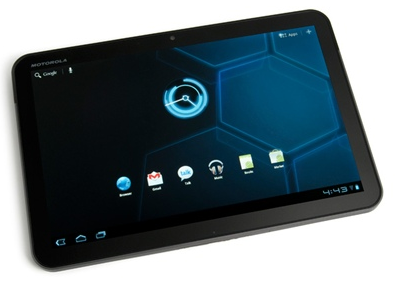
The Man in Blue flash bechmark runs more slowly on the TW317 than on the Motorola Xoom which is a bit sad considering the difference in price. You’ll see around 20-24 FPS on the TW317 and 28-30 FPS from the Xoom. For some context, my laptop (several years old) pushes around 50 FPS with several applications open.

CrystalMark
The TW317 scores worse in CrystalMark than one of the very first devices that I ever reviewed here on UMPC Portal, the Acer Aspire One.

onkyo tw317 crystal mark

Back in 2008, the Acer Aspire One scored 27k, and it didn’t even have an SSD. The TW317, which gets a 2k bonus from the SSD, still only scored 25k in CrystalMark. This is only slightly better than my five year old Sony VAIO UX180 which scores around 23k.

Sunspider
The Sunspider javascript benchmark is very browser dependent, but it gives us a way to compare cross-platform performance. I ran Sunspider on the TW317 and found a score of 2122.4ms (using the latest public release of Chrome). It turns out that the Xoom outperforms the TW317 in Sunspider by scoring 2045.9ms in the default browser. I’m not sure if I should be impressed by the Xoom or ashamed of the TW317. For context, my Windows 7 laptop scores 567ms in Sunspider.

Video Playback
As mentioned, playback of 720p YouTube content actually worked with no issues. I was also happy to find that local 720p content played fine through VLC. I tested the same 720p content encoded with AVI, H264, and OGG. All of them played smoothly through VLC.

If you push the resolution up to 1080p with H264, you’ll actually find relatively smooth video with the occasional freeze. It’s not entirely unwatchable, but I would prefer smooth 720p over 1080p with occasional freezes.

Video encoded with OGG in 1080p tends to freeze much more often, while AVI/MPEG4 1080p actually sees better performance than H264 and plays with no lockups.

Battery Life

Battery life on the TW317 wasn’t all that bad, but the lack of removable battery makes power options on this slate less flexible than with other devices. Using the classic BatteryEater benchmark, which runs the computer at 100% CPU until the battery discharges, the device ran for 2 hours and 45 minutes. This figure indicates approximately the least amount of time that the slate can be run on battery power, so normal use would likely see around 4 or 5 hours of use. The discharge graph was very uniform so you can expect consistent battery run times.

Conclusion

Aside from some unexpectedly good video handling, the Onkyo TW317 is a joke. On paper, the device might not sound so bad, but when you remove vital components (mouse/keyboard) from a computer running an OS that is designed from the ground-up to take advantage of those components, you shouldn’t be surprised when things go wrong. There’s no way that I would ever recommend this device over a convertible tablet PC, or a slate with an active digitizer , or even a consumer tablet (iPad/Xoom, etc.). Sluggish web browsing, near-complete lack of finger-touch-optimized applications, and horrible end-user usability make my recommendation for this device an easy one: don’t buy one. Ever.

P.S. I’m fully aware that there will be at least one person out there who thinks that I’m out to give slates a bad name. This couldn’t be more wrong. If this was a product that worked well and was actually useful, I’d be happy to report that. Unfortunately I can only go on the true usability/practicality of the device, and that’s exactly what you’ve read above.

Edit: A little clarification in the comments –

I’m not dissing touch on Windows. I’m dissing slates WITHOUT keyboards or mice (active digitizer is an acceptable replacement for keyboard/mouse). I OWN a tablet PC and I love it. The different between a slate and a tablet PC is that slates do not have keyboards or mice, while tablets are convertible. I love the ink input. I even love the occasional touch input (it’s resistive however so I use it less commonly). The issue is that touch only works effectively for a SMALL portion of the overall Windows OS. This is why it makes sense to have a convertible which still has a keyboard and mouse so you can switch between the different input methods as needed. As soon as you remove those two components, you are forcing the user to use crippled input that Windows was not designed for. The fact that the user can get stuck in the BIOS without a USB keyboard, or the fact that some applications are rendered nearly unusable when you only have touch input clearly shows that touch-only is not a good experience and was not well thought out by the people who are creating slates.

Viliv Unveils Second Generation X70 Windows 7 Slate

Tags: , , ,


x70_windows7 slate_1It was actually back in June of 2009 that we got our hands on Viliv’s first generation 7” slate for a full review, the Windows X70EX. Now at CES 2011, Viliv has unveiled the second generation of this device, the X70.

The X70 runs Windows 7 out of the box and Viliv claims that it’s the “slimmest and lightest” Windows tablet in the world, but I’m certain that there’s some subtext to that claim. The 7” 1024×600 screen has been upgraded to a capacitive touchscreen which will certainly improve the input experience. Viliv says that the X70 will use “Intel’s next generation mobile CPU”, but we’re still waiting for specifics on that front. For the time being, we do know that the device will have 2GB of RAM and weigh 0.926lbs (420g).

You can keep an eye on up to date specs, links, and additional info at our Viliv X70 tracking page. I’m sure Chippy will do his best to get some hands-on time with this device at CES 2011, so stay tuned! Here’s another press shot for the road:

Cut out of young woman showing camera isolated

Onkyo TW317 Overview Video

Tags: , , ,


IMG_3698We’re still busy taking the Onkyo TW317 for a spin and have put together a little video to show you a bit about what Windows 7 life is like without a keyboard or standard mouse. After a somewhat heated comment debate in a recent article, I’m interested to see people’s thoughts on the usability of this device, lets hear what your thoughts are in the comments below.

Onkyo Windows 7 Slate Unboxing and Gallery

Tags: , ,


We gave you a heads up a while back that we’d be getting our hands on one of Onkyo’s three capacitive Windows 7 Slates, and it’s finally here. Onkyo is a name that’s more commonly associated with audio equipment than computers in the US, but they’ve delivered a surprisingly sturdy Slate that’s been made available here in the US thanks to Dynamism. We’ve got the top end Slate on tap for some testing and you can expect the full review in the near future. Here’s a spec rundown:

  • Windows 7 Home Premium
  • Intel Atom N450 @ 1.66GHz
  • GMA 3150 graphics
  • 10.1” capacitive touchscreen @ 1366 x 768
  • 1GB of RAM
  • 32GB SSD
  • mini-HDMI output
  • 1kg
  • 1.3MP webcam

We’ve got an unboxing and detailed gallery ready for your perusal:

Onkyo TW317 Unboxing

Here’s a few highlights from the photo shoot, stop by the full gallery to check out all photos of the Onkyo TW317:

IMG_3706 IMG_3713

IMG_3722 IMG_3715

IMG_3709 IMG_3703

HP Slate With Windows 7 Still A Possibility

Tags: , , , ,


hp-tablet

I must admit, I was disappointed when I heard news that HP had cancelled the Windows 7 Slate that we had famously seen Steve Ballmer demo during in his keynote at CES this year. Just as we thought all we had to look forward to from HP was a WebOS tablet, this little nugget of information pops up in a well hidden page on HP’s site.

Specifications are slim but what we do know are as follows;

  • Windows 7 Home Premium
  • Intel Atom 1.6Ghz
  • 1GB RAM
  • 8.9 inch screen
  • Two cameras (still & video)

The XB830PA or HP Slate 500 will have the typical Intel Atom 1.6Ghz and 1GB of memory internals, although which chipset is still anybodies guess at this point.

The HP Slate 500 has also landed on Energy stars certified products list which confirms some of the specifications but no official word on pricing or availability.

Windows 7 Slate Design – *Must-Read* White Paper

Tags: , , , , ,


ASUS Eee Pad EP121 12 inch I know there are a lot of designers, manufacturers and resellers that read UMPCPortal so this one is for you. Potential Windows 7 Slate customers should also read this. In fact, as a reviewer, I’m learning from this White Paper too!

Windows 7 Engineering Guidance for Slate PCs.

Windows for Devices have reproduced an extremely useful white paper by Microsoft that gives detailed information about what Windows 7 can bring to Slate PCs (note – Microsoft aren’t using the ‘Tablet PC’ term!) and how designers should think about everything from ergonomics and electronics. Windows 7 is one of the only operating systems that provides the Full Internet Experience with a productivity focus and a touch-enabled user interface. It may not be the sexiest but as of today, nothing can touch it for desktop-style productivity.

There are some obvious tips that are useful for designer and buyer…

  • Provide 2 gigabytes of memory on CPU-constrained and GPU-constrained systems.” [which applies to Menlow, Pine Trail and Oak Trail designs in my opinion - Chippy]
  • Slate PCs should use solid-state drives (SSDs) to enable lower power consumption and high reliability in a mobile environment. SSDs also have greater performance than most traditional platter drives.”
  • Battery life should exceed 4 hours under normal operating conditions.

…and some not-so-obvious tips…

  • To get a Windows 7 hardware logo on a device bigger than 10.2” you need to support DirectX 10
  • Ensure handgrip regions are designed away from heat dispersion and venting.
  • Biometric logon — Consider including a fingerprint reader for improved ease of access for logon and security scenarios.

The document is rich with advanced tips and inks and is also a recommended read for anyone considering buying a WIndows 7 ‘slate’. Clearly, with Microsoft pushing Windows 7 into this area, with OakTrail offering a super low-power platform and the general slate/pad/tablet wave of interest we’re seeing at the moment, there will be an increased number of offerings in the late 2010 and 2011 timeframe.

Additional information can be found in my article: Things to Consider when Designing or Buying a Tablet-Style Device

Windows for Devices – WIndows 7 Engineering Guidance for Slate PCs

Viliv X10 Windows Slate – Capacitive Touch and Active Digitizer?

Tags: , , ,


Digging around on Viliv’s site, you can find the Viliv X10 Windows spec sheet which shows a different design than the one that we saw at Computex.

viliv x10 (windows)

This rendering is actually looking quite nice, but we won’t necessarily see this design. Viliv says that, while the X10 (Android) Slate will be shipped by them, this X10 (Windows) Slate is a design that may or may not be sold to other manufacturers that will apply their own branding.

viliv x10 (windows) spec sheet

Interestingly, Viliv’s specs sheet mentions that the screen is capacitive with “pen input”. It’s possible to do multi-touch on a resistive screen and thus “pen input” would simply mean using a stylus. However, because the screen is capacitive, the only way to get pen input would be with an active digitizer (or a capacitive stylus, but that’d be a gimmick on Viliv’s part) – which would mean a pretty awesome digital notetaking experience on this device – unlike some of the other slates we’re seeing. It’s possible that the wording on the spec sheet was a mix-up for this early concept, though it’d be great to see an active digitizer on this device.

New Viliv UMPC? Viliv X10 spotted running Windows 7 at Computex

Tags: , , ,


x10 I just put an article up on UMPCPortal’s sister site, Carrypad, about the Viliv X10 — a 10” Slate running Android. Interestingly, the source article from LaptopMag mentions that they’ve spotted the same X10 device running Windows 7 at Microsoft’s booth:

There’s also a Windows 7 version of the Viliv X10. Though Viliv was not showing the Windows 7 version of the X10 in their suite, we spied a demo unit working under glass at Microsoft’s booth and took a few pictures.

The Atom sticker can clearly be seen on the device (as well as the Windows 7 task bar). The unit looks identical to the Android X10 that we covered at Carrypad. This is somewhat confusing, because the Android version is surely running ARM architecture. Perhaps the Windows 7 X10 under glass is simply a mockup by Viliv? I guess time will tell, and if Chippy has anything to do with it, it’ll likely be sooner rather than later.

Why Consumer Oriented Windows Based Slates are Going Nowhere Fast

Tags: ,


Is is really that hard for a product designer to sit down and think about what sort of computing experience a product is going to provide a customer?

Thanks in part to devices like the Joojoo [Portal page] and the iPad [Portal page], Slate mania is officially underway. Everyone wants to jump on the bandwagon, and those that do — with Windows based devices — are going to fail in a big way. Why? Because the companies creating these products can’t accept one simple fact:

Windows computers require a usable mouse and keyboard to provide a good computing experience.

Whenever this point gets through the heads of the people making the decision to create products such as MSI’s Wind Pad 100, we’ll stop seeing these useless Windows based slates.

Slates are touchscreen computers that lack physical keyboards. Usually this lack of keyboard is compensated for with the addition of an active digitizer touchscreen which allows for some pretty darn good digital ink input. Many of the devices that we’re seeing from this upcoming wave of consumer slates, however, lack active digitizers and instead expect customers to deal with awful on-screen-keyboards. On-screen-keyboards can be pretty good with capacitive touchscreen, as we’ve seen with iPhone/iPad and Android devices, but we’ve yet to see one that works even a little bit well in Windows.

Because some companies can’t seem to just accept that Windows is completely reliant on a usable mouse and keyboard, we’re going to continue to see these $500 touchscreen slates with crappy in-house interfaces that sit ontop of Windows and have “touch” somewhere in the name. These interfaces are nearly always eye-candy at best, but somehow they exist as a feeble attempt to compensate for the fact that slates don’t have physical keyboards and often don’t have very usable mice either.

We’ve seen this same song and dance before during the early UMPC days. The Origami software, that Microsoft hoped would provide some awesome touchscreen experience on UMPCs, turned out to be relatively useless. You simply can’t coat Windows in a little bit of touchscreen interface and pretend that it suddenly makes the operating system useful for a Slate. Windows is a complicated and extremely deep operating system which has been relying on the mouse and keyboard paradigm for years and years. This means that the ridiculously huge library of software that has been created for Windows over the years is also reliant on a quality mouse and keyboard implementation. If customers can’t use the base operating system effectively without some crappy touch-interface layered on top (which doesn’t extend to that vast library of software), how is the device going to be even remotely useful for use with any of the software that is built with a usable mouse and keyboard in mind? The best UMPCs were those that had usable keyboards and mice (such as the Samsung Q1 Ultra and the Sony Vaio UX Series), not the ones that had poorly designed “touch” interfaces that we’re slapped ontop of Windows. The best UMPCs gave people keyboards and mice that worked, then got out of the way and allowed consumers to use their UMPCs like the little computers that they are. They didn’t try to emulate some ‘appified’ computing experience that people are currently enthralled with on high-end smartphones.

These horrible in-house “touch” overlays are going to have an even harder time than Origami did back in the early UMPC days. Why? Because devices like the iPad — which is similarly priced to many upcoming Windows slates — provides a computing experience that doesn’t rely on a physical keyboard and a mouse. It has a ground-up approach to the way that people interact with the computer. Simply having a Windows overlay that might play music and do a slideshow is not going to provide the utility that facilitates a useful computing device, and consumers are going to be begging for a mouse and usable keyboard, not the horrifically inefficient on-screen-keyboards that we’ve seen on Windows in the past.

MSI Unveils the Wind Pad 10” Slate

Tags: , , , ,


wind pad MSI, the maker of some fairly well regarded netbooks, is going to be bringing the “Wind Pad 100” Slate to market. The keyboardless 10” capacitive touch unit will be powered by the Atom Z530 CPU and will have HDMI out, presumably for 720p video output to an HDTV. The MSI product manager says that the MSI Wind Pad 100 will be available “later this year” for $499, according to Engadget.

Sadly, the device will be running Windows 7 with an ugly tack-on touch interface which is sure to not be any more useful than the Origami UMPC software once was. Engadget is already saying the following about the “Wind Touch” UI:

Our biggest concern about the tablet comes down to speed. We noticed it taking a few seconds for applications to launch, and the Wind Touch UI was incredibly sluggish. Speaking of the UI, it’s just a basic skin on top of Windows and is clearly still being tweaked.

I couldn’t tell you exactly why MSI (or anyone for that matter) thinks that slates running Windows 7 will be even the slightest bit consumer friendly. MSI (and again, anyone else) will not be able to provide a good computing experience with an interface that just sits on top of Windows.

[Engadget]

Hands-On with the HP Slate UMPC Shows Docking Station

Tags: , , , , , , ,


hpslate

Yes, I’m calling this a UMPC. Why? Because it is! It has closer ties to everything that we’ve done over the past four years on UMPCPortal than any social and entertainment ARM-based ‘pad.’ It’s built with UMPC components (Z530 as used in nearly all Windows-based Ultra-Mobile PC’s ) and it runs Windows 7. I won’t be subscribing to the iPad comparisons just because it’s got an 8.9” screen; that would be too simple and would miss the point. As for it being a ‘netbook without a keyboard’ well, it’s closer but still somewhat misleading.

Update: HP Slate information, comparison, specs and links now in the database

The HP Slate looks like it could be one of the best mobile tablet PCs we’ve seen for a long time (could it top my personal favorite, the X70?) and I’ll be working to get some review-time with it as soon as possible but I know already that it won’t impress anyone looking for a slick consumer-centric device. It’s questionable that a 1.6Ghz Menlow will provide enough power to drive Windows 7 satisfactorily too but having done lots of testing with my Viliv S10 multitouch convertible, based on exactly the same hardware and software, I can tell you it works quite well, as long as the SSD is fast. Again, not slick, just productive.

Here’s the latest hands-on article but unfortunately, they take the iPad route. They also assume that it has a broadcom chipset like everyone else; forgetting that the Poulsbo chipset that pairs with the Z530 already has an integrated HD video decoder.

hpdocking

They do manage to uncover a docking station though and that’s a very useful addition, especially if it’s included in standard retail package. [He says, using a U820+docking station to write this article.]

More photos at the source: Conecti.ca

Via netbooknews.de

Samsung ‘Slate’ in 2H10. Why MeeGo and Moorestown are High on the List.

Tags: , , ,


IMG_6220Over the last 4 years, Samsung have consistently produced good quality UMPCs and Netbooks. The NC10 is still a good netbook choice and the Q1 Ultra (image right) was a cracking UMPC. When Samsung announced that they would build an MID or UMPC back in 2008, we were interested to see what would happen. Unfortunately, not much happened. Samsung were a no-show at IDF08 and all we saw in the end was the Mondi WiMax device on ARM and the rather unexciting Q1 EX on the VIA platform.

You’ll excuse us then if we take the report of a new Samsung Slate with a pinch of salt then!

A senior Samsung executive in Australia has revealed that they will be producing a ‘Slate’ in the second half of the year. The word ‘Atom’ is mentioned alongside keywords like ‘pc-grade’ , ‘consumer’ and ‘connectivity.’

If you ask me, the timing and positioning sounds right for a MeeGo tablet-style device running the Intel Moorestown platform. Samsung have worked closely with Intel on mobile devices in the past and it would be the perfect partner to go alongside LG for a big Moorestown launch at Computex 2010 or even a separate Nokia/Intel/Meego launch event alongside a new Nokia smartphone. (Sidenote: I doubt we’ll see MeeGo+Nokia at Intel’s IDF or MeeGo+Intel at Nokia World. What do you think? Joint marketing could be quite the challenge with MeeGo.)

We know already that the Moorestown platform runs at 600Mhz with ‘turbo’ features enabling it to run for short periods at 1.2Ghz (video) which would make it far more powerful than the iPad (mentioned in the article.) With ‘power-gating’ bringing it smartphone-like always-on features, HD (720p) video encoding and HD video decoding along with the unique feature of being very USB-host-capable (think docking stations) you can see that Moorestown fits in very well with the keywords mentioned above and offers quite the flexible solution.

Personally I hope that Samsung doesn’t go the Windows 7 route. We’ve learned over the last year that Windows 7 + Atom is not the best solution if you want to enable consumer features like Windows Media Center and multitouch. With the mobile-focused hardware/software partnership of Moorestown and MeeGo, we could see some far more usable and consumer-friendly systems.

Source. APCMag

Hugo Ortega Readying the Tega Tablet

Tags: , , , ,


tegatech-tega-3g-w7p Hugo Ortega, who runs the ever interesting blog Uber Tablet, is preparing to launch a device with his company, Tegatech. The aptly named Tega tablet looks to be a rather clean Slate with some fairly regular sounding specifications. It has a 10.2” resistive touchscreen with a resolution of 1024×600, uses a 1.6GHz Atom N270 CPU, and has built-in 3G. The asking price seems a bit steep considering the Slate competition out there — $995 for a version with no OS, or $1,145 for one with Windows 7 Starter (there is also a Win 7 Home Premium version available). Full specs below:

tega specs

Could the Adam Surpass the iPad by Taking More Risks?

Tags: , , , , ,


ipad adam I just finished an overview post on the ever-interesting Notion Ink Adam slate over at Carrypad.com. As I researched the Slate, I came away rather impressed with it. While we have yet to see production models, what Notion Ink claims to be bringing to the table with the Adam could very well surpass the iPad [Product page] in terms of power/battery life/features – is this a result of a small company’s ability to take risks that a large company couldn’t afford?

Most of us are all too familiar with Apple’s practices. Step one for Apple usually involves boiling a product concept down and identifying key uses. Next, they design the product around those key uses and make sure that it works very well for them. Finally they produce a well polished product that generally brings existing hardware together with streamlined software in a way that outshines most products in the category, but because the device is designed around specific uses, they often force their users to do things their way.

Then along comes a relatively small company like Notion Ink. I’ve got to imagine that being small allows them to respond quickly to changes in the market as they are developing their product, which affords them the ability them to incorporate some bleeding-edge hardware (like a dual-core Cortex A-9 CPU, Nvidia’s Tegra 2 platform, and Pixel Qi display.) Additionally, being open about the development of their device leaves the door open for feedback and constructive criticism which will all end up improving the final product.

It’s unlikely that Notion Ink will sell even half as many Adam slates as Apple sells iPads, but I feel that they have a shot at stealing relatively large chunk of would-be iPad users by being bold enough to include things like a swiveling camera and a rear trackpad. Of course much of this potential will be lost if the price isn’t right — as well as how long it takes them to get it to market (neither of which have been announced officially.)

And let’s not forget that both of these devices could fail pretty easily if their OSKs don’t function adequately.

I think this is a big opportunity for Notion Ink, and I really hope they are able to delivery everything that they have been claiming with this product. What do you think, dear reader? Would you take the Adam over the iPad if you could pick either for the same price? Let us know what your thoughts are in the comments below.

Don’t forget the Tablets. (46 of them!)

Tags: , , ,


If the ‘iPad’ is launched tomorrow there’s one thing that’s certain to happen. As senior editors prepare their copy and aim to boost SEO value by focusing on the current keyword trends, the many tablets that already exist in the market will be completely overlooked. Some tech journalists will remember that something tablet-like existed back in 2006 and mark it as a failed category but of course, we know different.

The number of tablet devices in the market has grown considerably in the last 12 months and we’re now at the point where we have 46 of them fully-specified in the database with screen sizes of 4.8 to 10 inches.

Prices range from $200 to over $1000 with processors based on RISC and X86, operating systems based on Windows and Linux and battery life ranging from 2-10 hours. Our favorite so far – The Viliv X70. What’s yours?

alltablets
Click for a full interactive list (updated daily) and please, don’t forget the tablets!

Search UMPCPortal

Sales Information


Our Network

  • Big Beach Our marketing advisors. Located in UK.
  • Carrypad Tablets and consumer mobile products
  • Device Manufacturer List List of all device manufacturers, and products, from our database
  • JKKMobile JKKMobile – Mobile computing and hacking – Partner of UMPCPortal
  • Liliputing Netbooks and small-form-factor laptoping – Partner of UMPCPortal
  • MeetMobility Mobile computing podcast broadcast every two weeks – Partner of UMPCPortal
  • Netbooknews Netbooks and other mobile devices – Partner of UMPCPortal
  • Ultrabook News Ultrabook products, specs and news